Word Counter: Write Better, Clearer & Smarter
Staring at a blank page is hard enough.
You are trying to write an essay, a blog post, or the perfect tweet. You have ideas in your head, but you are also staring at a specific number in the back of your mind.
Is it 500 words yet?
Did I go over the 280-character limit?
Is this actually easy to read, or am I just using big words to sound smart?
Writing is an art, but hitting your targets is a math problem.
Our Word Counter is built to solve the math problem so you can focus on the art.
It does not just tell you how many words you wrote. It reads alongside you, checking your readability, your keyword density, your sentiment, and even how long it will take someone to read it out loud.
It is a complete writing assistant that runs entirely in your browser. No logins. No uploads. No saving your drafts to a stranger’s server.
Just you, your words, and the data you need to make them better.
It's waiting for you right now at useminitools.com — and this guide will show you everything hiding inside it.

What Is a Word Counter?
A word counter is an online tool that analyzes your text and gives you real-time statistics.
At its core, it tells you how many words, characters, sentences, and paragraphs you have written.
But modern writing requires more than just a basic count.
If you are writing for SEO, you need to know your keyword density. If you are writing for social media, you need to know your character limits. If you are writing for an audience, you need to know your readability score.
You may also hear these tools called a character counter, text analysis tool, sentence counter, or reading time calculator.
Whatever you call it, the goal is the same: to give you a clear picture of your writing so you can adjust it before you hit publish.
How to Use the Word Counter
You do not need an account or a complicated setup.
Enter Your Text
Start by typing directly into the text box, or paste your text from another document. Everything you type is processed locally in your browser.
Watch the Stats Update Live
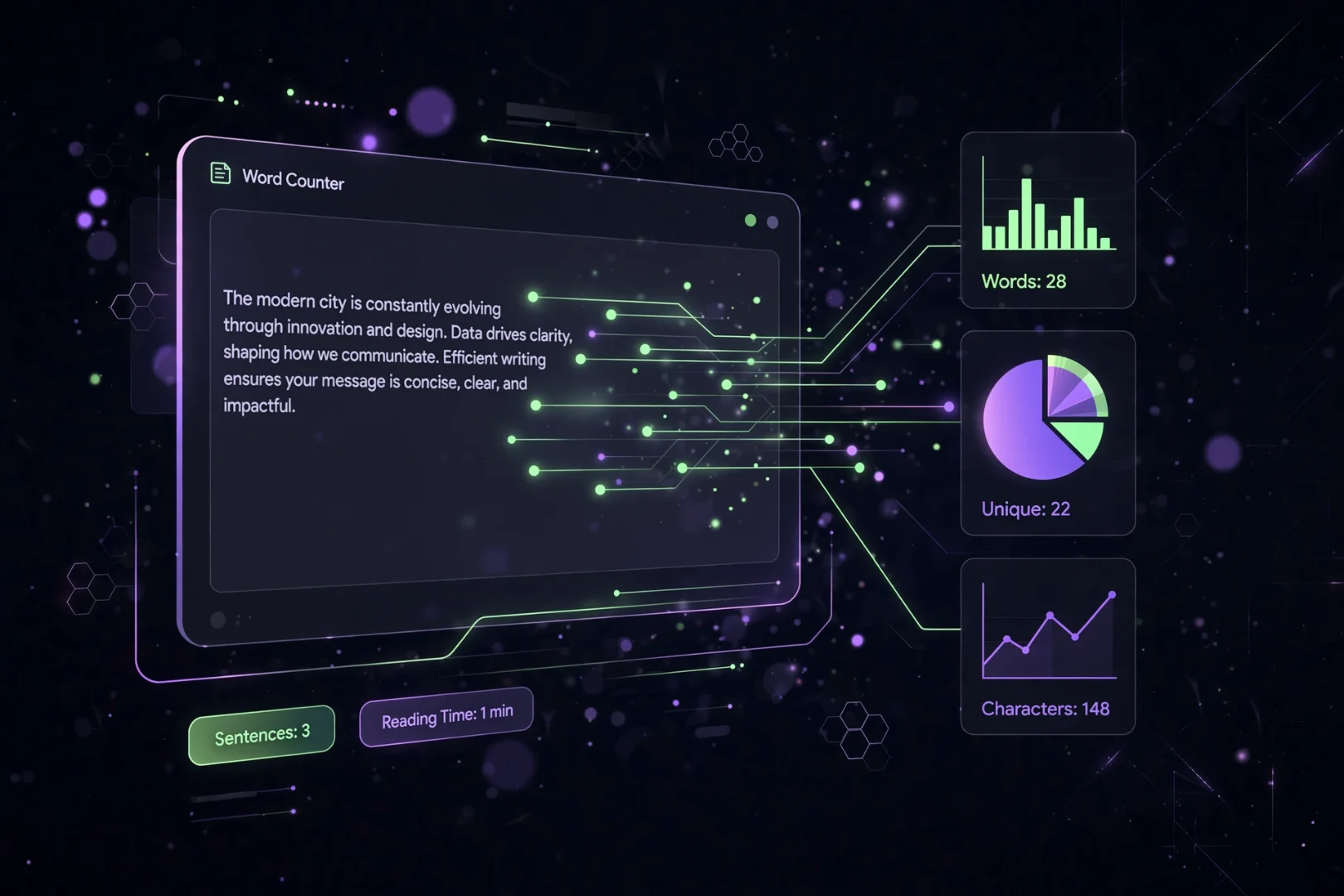
As you type, the tool instantly updates your word count, character count (with and without spaces), sentence count, paragraph count, and even line count.
Use the Quick Action Bar
Above the text box sits a row of one-click helpers: a Sample button that loads demo text so you can explore instantly, Copy for grabbing your text back, Save for downloading it as a .txt file, Speak for hearing it read aloud, and Clear for starting fresh.
Explore the Tabs
Below your text, you will find several tabs designed to break down your writing from different angles:
Stats: The core numbers, including reading time and speaking time.
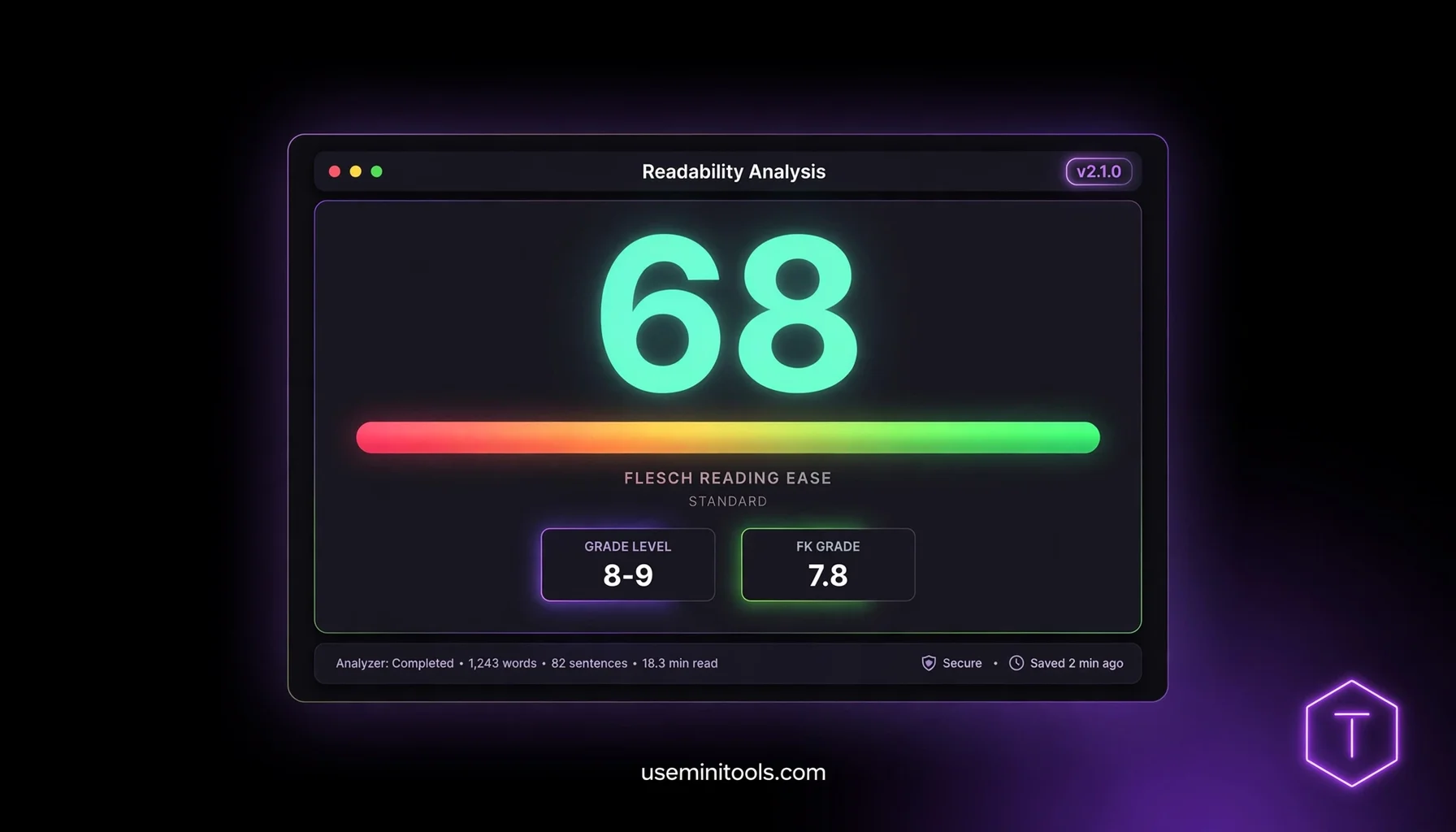
Readability: Your Flesch Reading Ease score and grade level.
Keywords: Your most used words and custom keyword density.
Social: Character limits for Twitter/X, Instagram, LinkedIn, and Facebook.
Sentiment: The emotional tone of your writing.
Content Score: A heuristic grade based on your text structure.
Tools: Quick actions like case conversion and passive voice detection.
More Than Just a Count: The Stats That Matter
Knowing you have 342 words is one thing. Knowing what those 342 words look like to a reader is another.
The Stats tab gives you the full picture — fourteen different measurements in two clean grids.
You can see your Lexical Diversity, which is the percentage of unique words you used. A higher percentage means you are using a wider vocabulary instead of repeating the same terms.
You can see your Average Sentence Length and Average Word Length. If your average sentence is 30 words long, your reader is probably getting lost.
You can also see your Unique Words count (how many words appear only once), your Longest Word and even your Shortest Word. Sometimes the longest word is a point of pride. Sometimes it is a sign you should have used a simpler word.
And two stats writers constantly underestimate: Reading Time (how long silence-to-scroll takes) and Speaking Time (how long a podium or podcast read-through would run). They use different speeds — speaking is slower — and knowing both is gold for anyone preparing to publish or present.
Write for Your Audience: Readability Scores
Have you ever read an article that felt like wading through mud? That is usually a readability problem.
The Readability tab uses the Flesch Reading Ease formula to score your text from 0 to 100.
90-100: Very Easy (5th grade)
70-80: Easy (7th grade)
60-70: Standard (8th-9th grade)
30-50: Difficult (College level)
0-30: Very Difficult (Professional level)
If you are writing a blog post for the general public, you usually want to aim for a score between 60 and 70.
If your score is too low, the tool will tell you what grade level your writing currently matches. You can then go back, break up long sentences, and swap out complex jargon for simpler words.
Master SEO and Keywords
If you are writing for the internet, keywords matter.
The Keywords tab does two things. First, it shows you the Most Used Words in your text. You can even toggle a switch to filter out "stop words" (like the, and, is) so you can see the actual themes of your writing.
Second, it includes a Keyword Density Checker.
Type a specific keyword or phrase into the box, and the tool will tell you exactly how many times it appears and what percentage of your text it takes up.
If the density is too high (usually over 3%), search engines might think you are "keyword stuffing" and penalize you. If it is too low, they might not know what your article is about. This tool helps you find the perfect balance.
Never Hit a Character Limit Again
Every social media platform has its own rules.
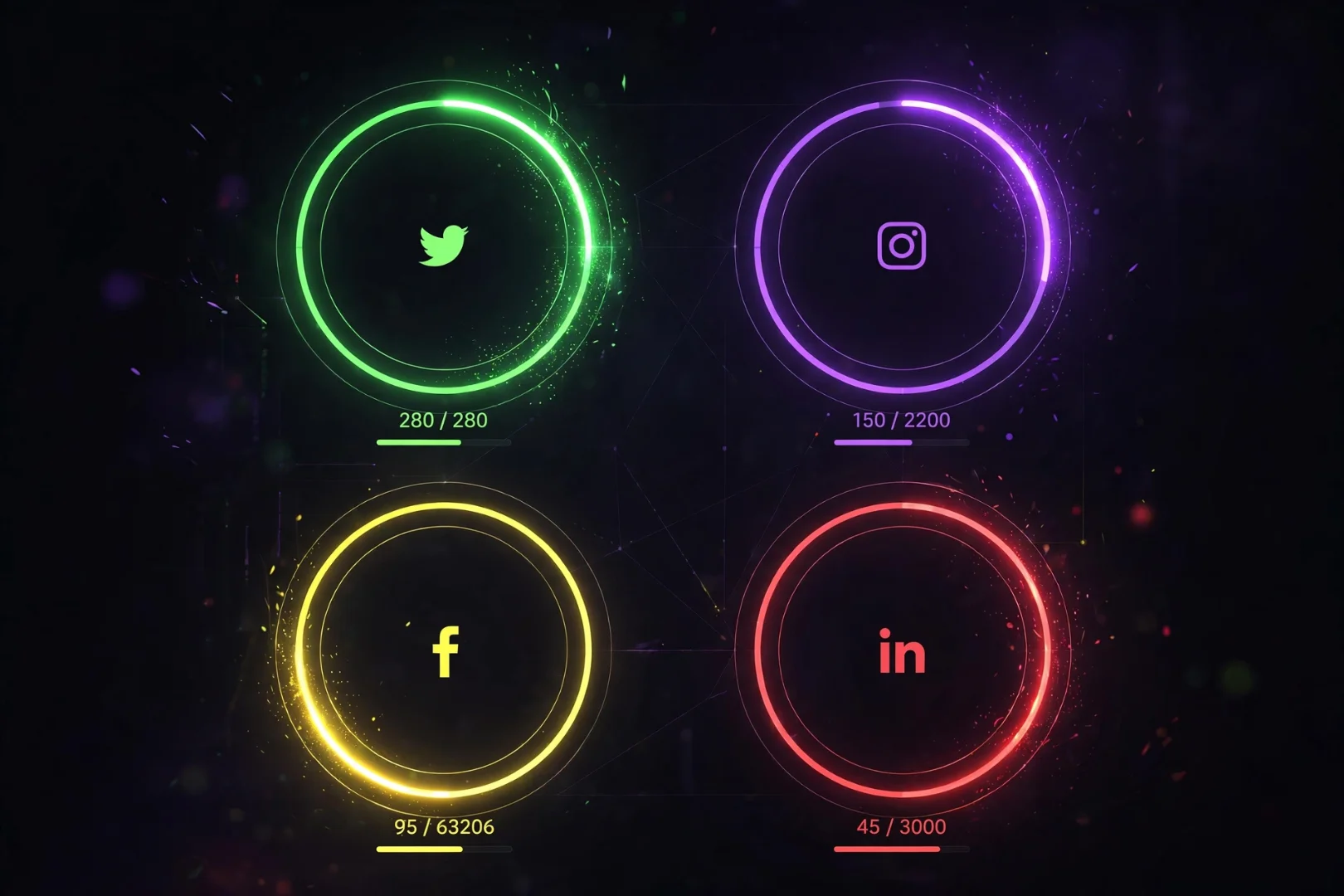
Twitter/X cuts you off at 280 characters.
Instagram captions max out at 2,200.
LinkedIn stops at 3,000.
Facebook quietly allows a massive 63,206 — which surprises almost everyone.
The Social tab tracks your character count against all four limits in real time, each with its own progress bar that fills as you type, turns yellow when you're close, and turns red the moment you go over.
As you type, the progress bars fill up. If you go over the limit, the bar turns red and tells you exactly how many characters you need to cut.
You can even set a Custom Character Limit if you are writing for a specific platform or assignment with strict requirements.
How Does Your Text Feel? Sentiment Analysis
Words carry emotion. Sometimes, we write things when we are frustrated, and we do not realize how sharp the text sounds until we read it back.
The Sentiment tab analyzes the words you use and gives you an overall sentiment score, ranging from Very Negative to Very Positive.
It highlights the specific positive and negative words it found in your text.
If you are writing a professional email and the tool flags five negative words, you might want to soften your tone before you click send.
If you are writing a product review, this is a great way to make sure your enthusiasm (or disappointment) is actually coming through in the text.
The Ultimate Writing Toolkit
Sometimes you just need to fix a quick formatting issue.
The Tools tab is packed with quick actions to clean up your text:
Quick Actions: Instantly convert your text to UPPERCASE, lowercase, Title Case, or Sentence Case. You can also remove extra spaces or strip out all line breaks with one click.
Text to Speech: Click a button and let the tool read your text out loud. Hearing your words spoken is one of the best ways to catch awkward phrasing and typos.
Passive Voice Detector: Passive voice can make your writing feel weak and indirect. The tool scans your sentences and highlights any that might be passive, so you can rewrite them to be active and punchy.
Repeated Phrases: If you accidentally use the same phrase three or four times, the tool will flag it for you so you can find a different way to say it.
Is My Text Safe?
Yes.
Everything you type into this Word Counter is processed locally in your browser.
Your text is never uploaded to a server, never saved to a database, and never read by anyone but you. You can paste your most private journals, your unreleased blog posts, or your sensitive business emails without worrying about data leaks.
Fun Ways to Use the Word Counter
There is no rule saying you have to use this tool only for homework or work.
Try it with:
Your social media bios.
Your dating app prompts.
Daily journaling.
Drafting tricky emails before you send them.
Checking the reading level of your favorite quotes.
Related Tools for More Writing Help
If you enjoyed using the Word Counter, there are a few other free tools that might help your writing process:
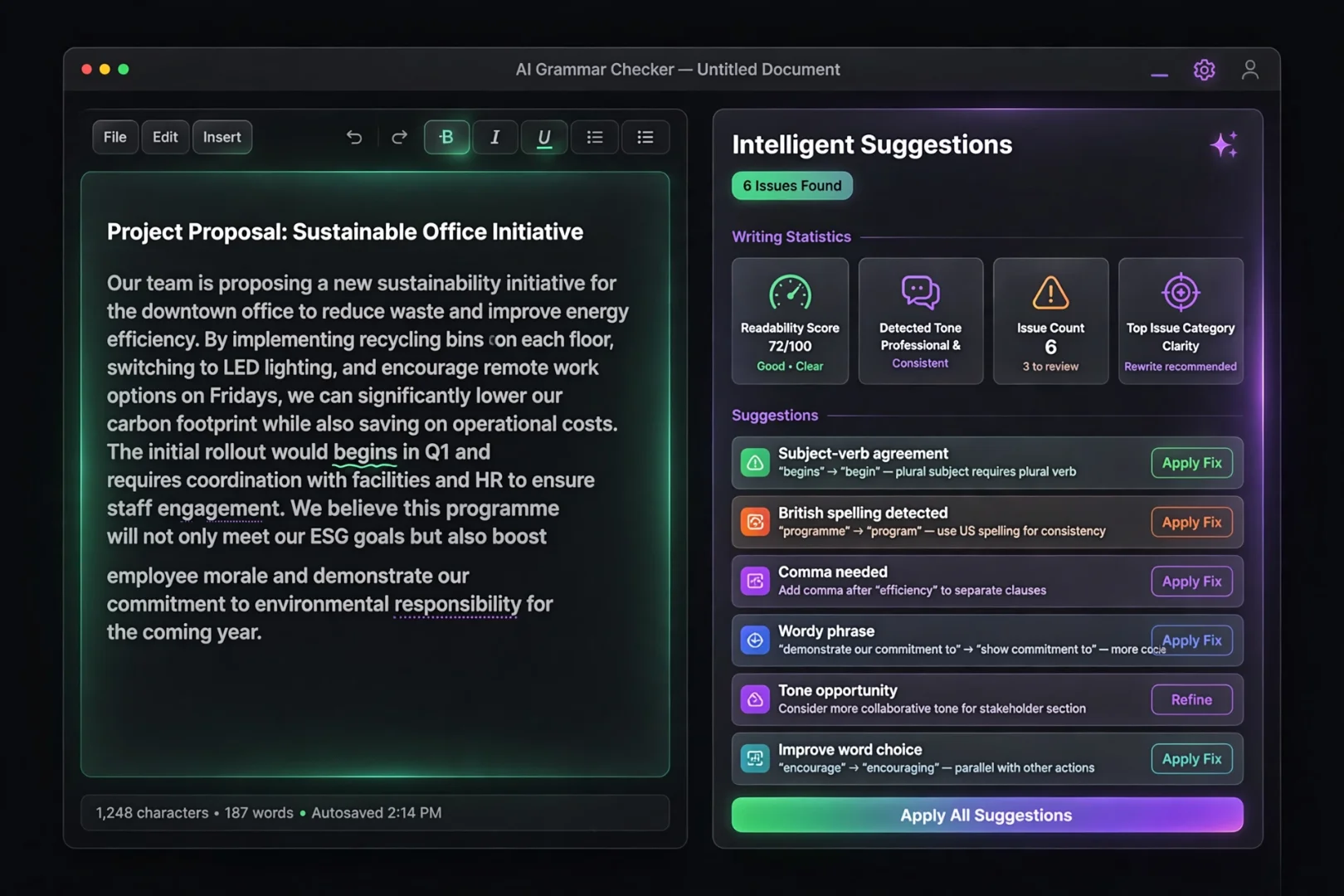
AI Grammar Checker: Fix grammar, spelling, and punctuation errors instantly with AI-powered suggestions.
Text Case Converter: Quickly convert blocks of text into UPPERCASE, lowercase, camelCase, and more.
Remove Duplicate Lines: Clean up messy lists or data by instantly removing duplicate lines.
Lorem Ipsum Generator: Generate customizable placeholder text for your web design or mockups.
Frequently Asked Questions
What is a word counter?
A word counter is an online tool that counts the number of words, characters, sentences, and paragraphs in a given text. Advanced versions also check readability, keyword density, and sentiment.
How do I check my word count online?
Simply paste or type your text into the text box at the top of this page. The word count and character count will update instantly in the Stats tab.
Does this tool save my text?
No. Your text is processed entirely in your browser. It is never uploaded to a server, ensuring complete privacy.
What is keyword density?
Keyword density is the percentage of times a specific keyword or phrase appears in your text compared to the total number of words. It is an important metric for SEO writing.
What is a good readability score?
For general web content, a Flesch Reading Ease score between 60 and 70 is considered ideal. This means your text is easily understood by 13- to 15-year-olds.
Can I check character limits for social media?
Yes. The Social tab tracks your character count against the limits for Twitter/X, Instagram, LinkedIn, and Facebook, showing you how many characters you have left.
Is this word counter free to use?
Yes. This tool is 100% free, requires no signup, and has no usage limits.
Because Your Words Matter
Writing is hard work.
You have to find the right words, put them in the right order, and make sure they actually make sense to someone else.
A word counter cannot write the words for you.
It cannot give you the inspiration to start, or the courage to hit publish.
But it can take away the anxiety of the numbers.
It can tell you if your sentences are too long, if your keywords are missing, or if your tweet is going to get cut off.
It handles the math, so you have more energy left for the magic.
Start typing at useminitools.com — the Word Counter is free, instant, and completely private.
Check your stats. Clean up your passive voice. Nail your character limits.
Then, take a breath, copy your text, and go share it with the world.
Cipher
Founder & Lead Developer, ToolKit
Cipher is an independent developer who prefers to let the work speak for itself. They designed and coded every tool on ToolKit to ensure they remain fast, private, and beautifully designed for everyone. No fame, no face — just premium tools that work.