Translate
WebP Converter — Convert JPG, PNG & AVIF Images Free
WebP Converter — Convert JPG, PNG & AVIF Images Free
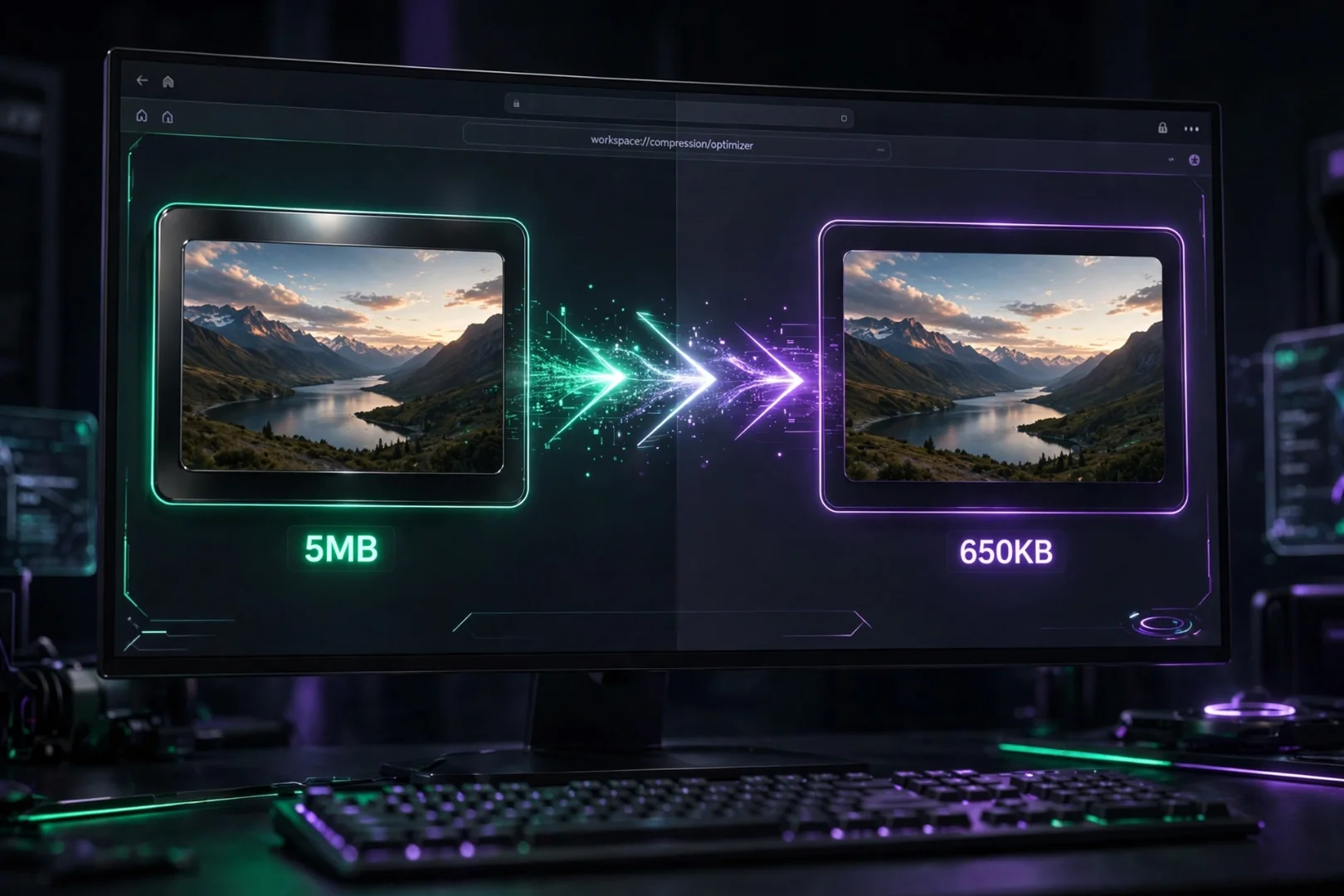
Choosing the right image format can make or break a website. A photo saved in the wrong format can weigh five times more than it needs to — slowing down your page, frustrating visitors, and quietly hurting your search rankings.
The fix takes about thirty seconds. ToolKit's free Image Converter lets you convert between JPG, PNG, WebP, and even the next-generation AVIF format directly inside your browser. No uploads, no accounts, no waiting in a queue on some overloaded server — your images are processed on your own device, which means they stay 100% private and the results appear instantly.
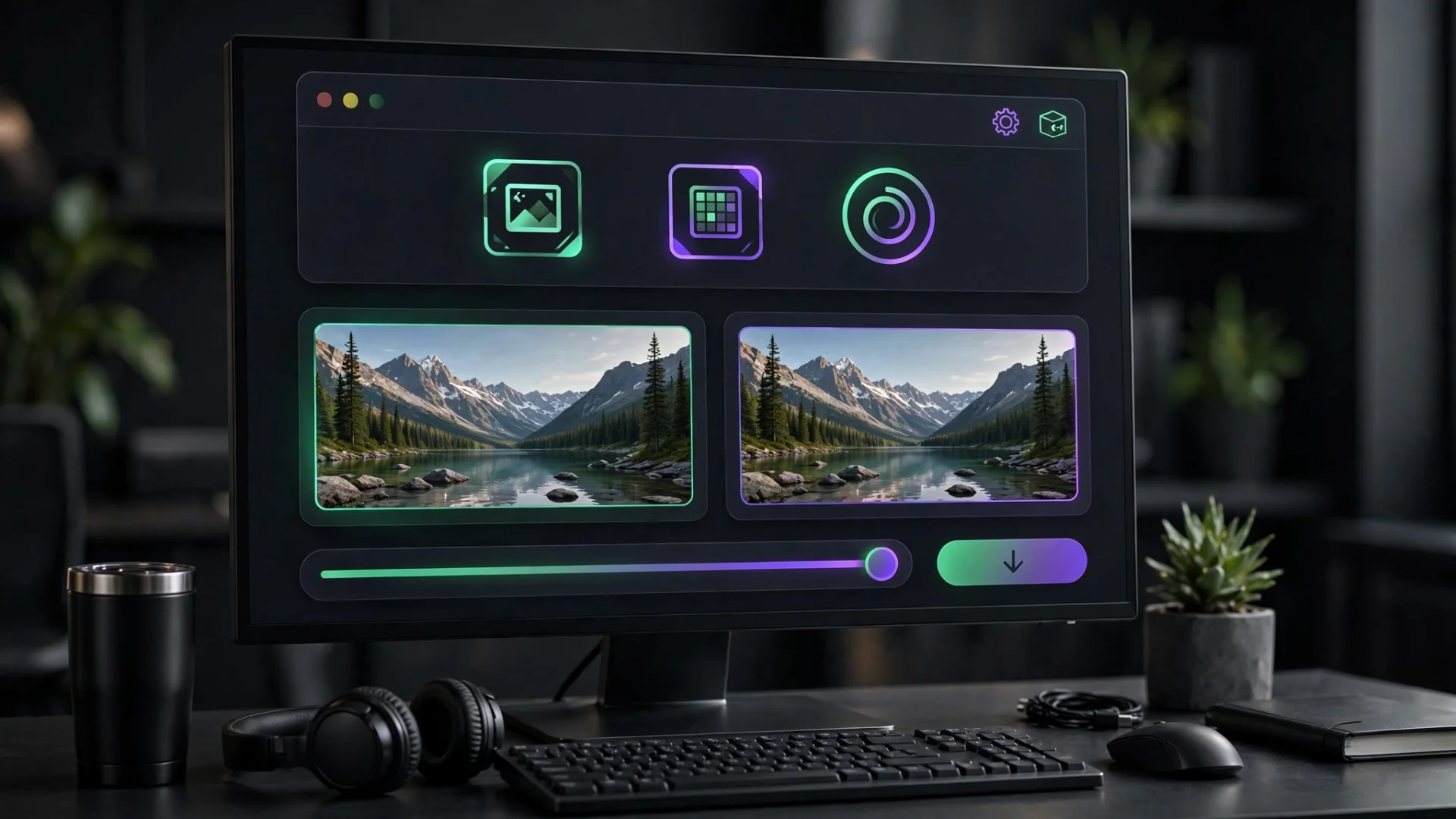
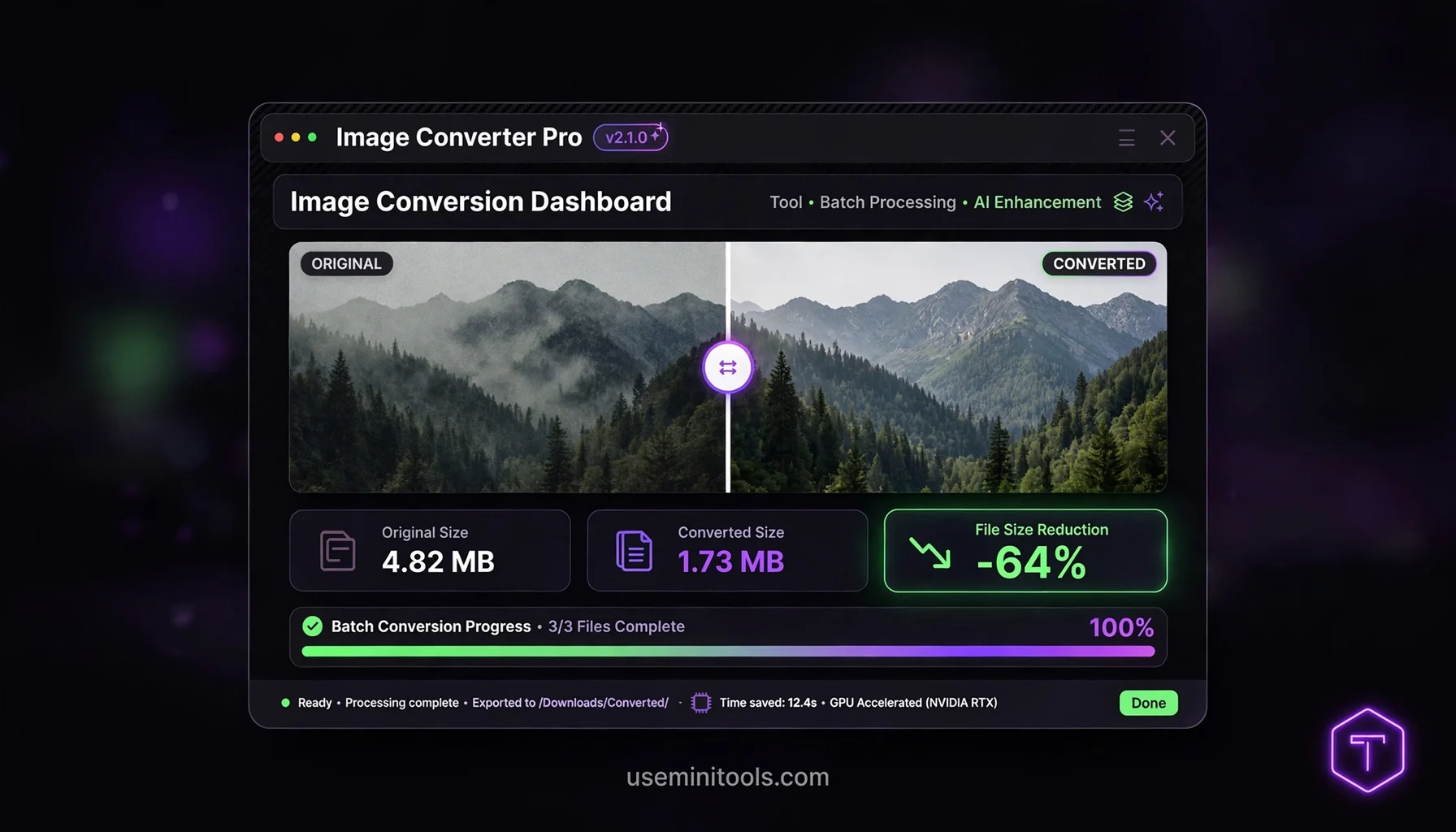
And it goes beyond simple converting. You can resize large photos to web-friendly widths, choose exactly how transparency is handled, compare the original and converted image side by side with a drag slider, check the exact file-size savings, and download everything as a tidy ZIP archive.
One small bonus most converters never mention: your photos secretly carry hidden metadata — including the GPS location where they were taken. This tool strips that automatically during conversion.
What Is WebP?
WebP is a modern image format developed to reduce file sizes while maintaining excellent image quality.
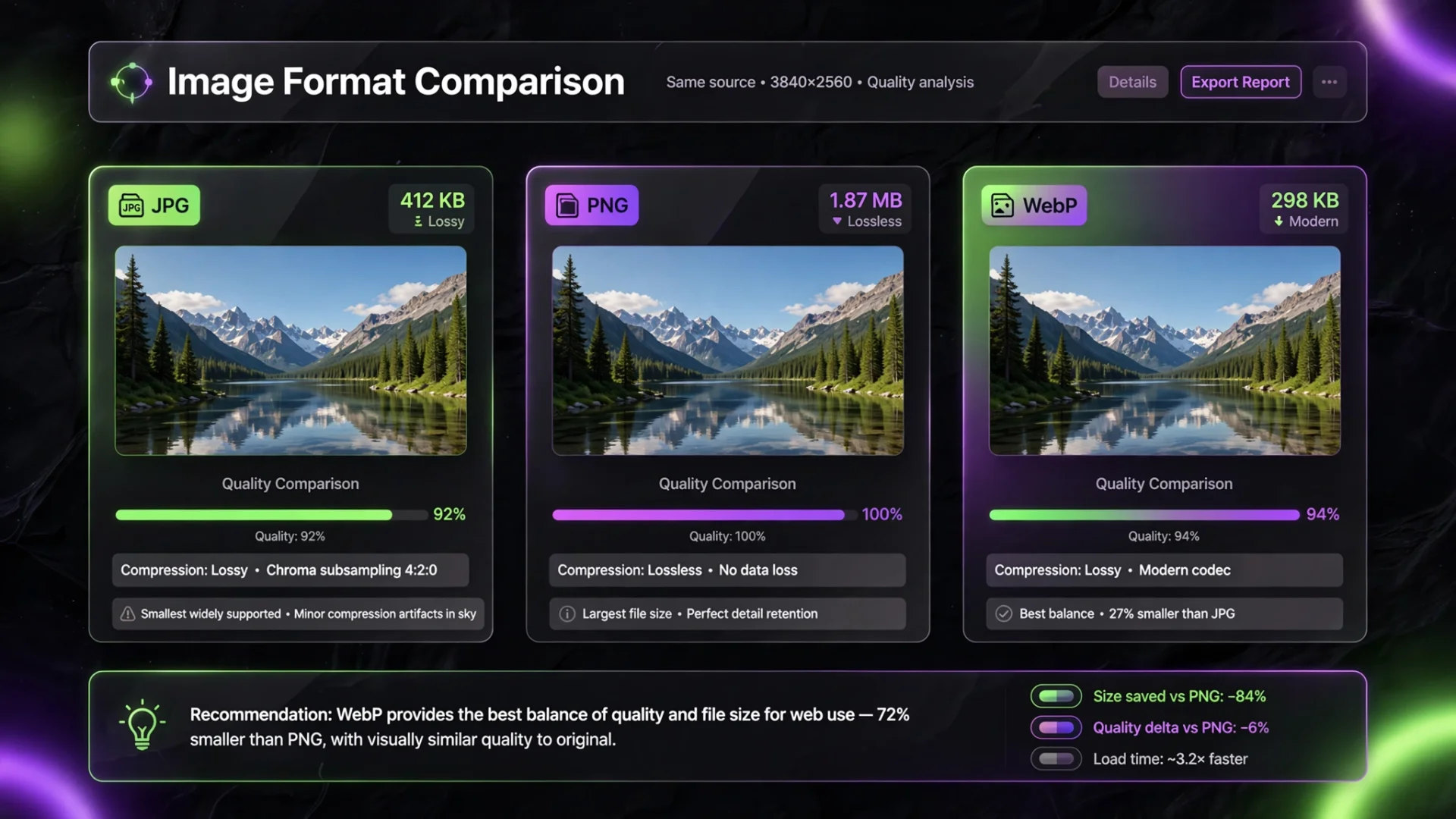
Compared to traditional formats like JPG and PNG, WebP often produces much smaller files, helping websites load faster without noticeably affecting image quality.
Many modern websites now use WebP because it improves loading speed while reducing bandwidth usage.
If you're wondering how to convert JPG to WebP for faster websites, using a browser-based converter is one of the simplest solutions.
Why Convert Images?
Different image formats serve different purposes.
WebP
Best for:
Websites
Blogs
Online stores
Faster page loading
JPG
Ideal for:
Photographs
Email attachments
General image sharing
PNG
Perfect for:
Logos
Transparent graphics
User interface elements
Choosing the correct format ensures your images look great while keeping file sizes under control.
How Our WebP Converter Works
Seven quick steps, about thirty seconds of your time.
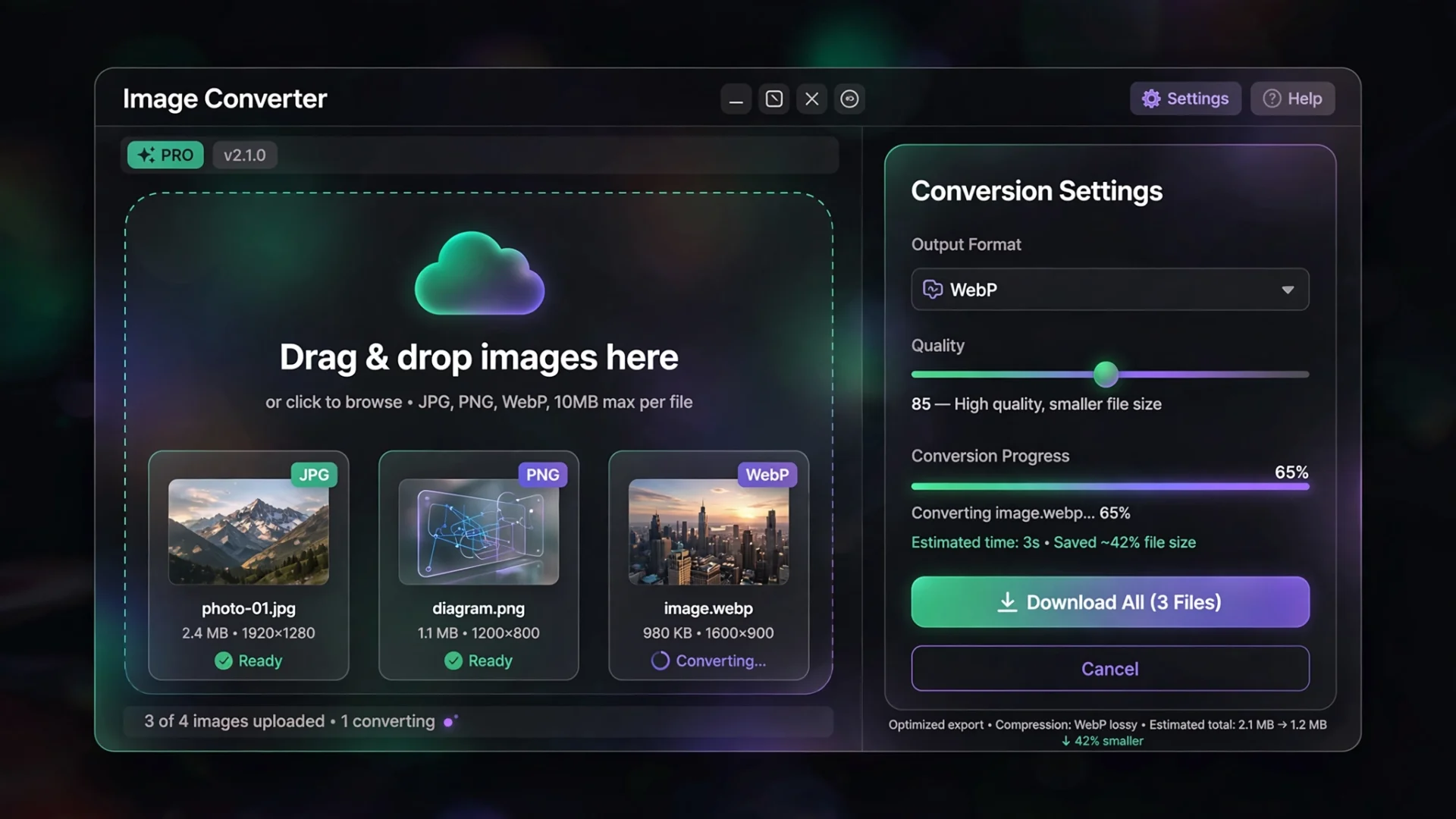
1. Upload Your Images
Drag and drop your images or choose them from your device. Batch uploading is supported, so you can convert a whole folder's worth in one session.
Supported input formats include JPG, JPEG, PNG, WebP, GIF, and BMP.
2. Select an Output Format
Choose between WebP, JPG, PNG, and AVIF.
That fourth option deserves attention: AVIF is the newest image format on the web, offering the best compression and quality available today. One honest note — AVIF encoding only works in Chrome and Firefox, so the button is there but depends on your browser.
Changing the output format automatically clears previous conversions, so you can never accidentally download outdated files.
3. Adjust the Quality
Use the quality slider to balance image quality against file size — or skip the guesswork with three one-click presets: Best Quality (92%), Balanced (75%), and Smallest File (40%).
4. Resize Large Images (Optional)
Enable the resize option and set a maximum width — 1920px is the sweet spot for website images. Oversized photos get scaled down automatically, which alone can cut file size dramatically before compression even starts.
5. Handle Transparency Your Way (For JPG)
Converting a transparent PNG to JPG normally produces ugly black boxes where the transparency was. This tool fills transparent areas with a background color you choose — white, black, light gray, or any custom color from the picker.
6. Convert and Compare
Click Convert, then use the interactive Before/After slider on each image to visually inspect quality loss. Drag left and right — if you can't see a difference, you've found your ideal quality setting.
7. Download — Individually or as a ZIP
Download each image separately, or grab the entire batch as one ZIP archive.
Key Features
Four Output Formats — Including AVIF
Convert between JPG, PNG, WebP, and AVIF without installing software. Most free converters stop at the big three; AVIF support puts this tool a generation ahead.
Quality Presets and a Fine-Tuning Slider
Three presets cover every situation, and the 1–100 slider gives you full control when you need to squeeze out the perfect balance.
Built-In Image Resizing
Scale down oversized photos to a maximum width during conversion — no separate resizing step needed.
Smart Transparency Handling
Converting transparent PNGs or WebPs to JPG? Pick the exact background color that fills the transparent areas, with quick presets for white, black, and light gray.
Honest Size Reporting
After conversion, you see the original size, the converted size, and the exact percentage difference. And here's the part worth trusting: if a conversion actually makes the file bigger, the tool shows the increase in red instead of pretending every conversion is a win. Rare honesty in a world of tools that claim "up to 90% smaller!"
Batch Conversion With ZIP Download
Convert dozens of images in one session, then download the whole batch as a single ZIP — with automatic filename handling so nothing gets overwritten.
EXIF Metadata Stripping
Every photo you take with a phone contains hidden EXIF data: the GPS coordinates where it was shot, your camera model, sometimes even the serial number. Share a photo the wrong way and you're sharing your home address. This tool strips EXIF metadata automatically during conversion — a quiet privacy feature that genuinely protects people.
Why Use a Browser-Based WebP Converter?
Many online converters upload your images to remote servers before processing them.
Our tool works differently.
Everything runs directly inside your browser, meaning:
Your images stay private.
No files are uploaded.
Processing is fast.
The tool continues working after it's loaded, even without an internet connection.
If you're looking for a free WebP converter that doesn't upload your images, this approach provides both convenience and privacy.
Tips for Better Results
A few field-tested tips to get the most from every conversion:
Convert to WebP for anything that lives on a website — the size savings are real and Google notices fast-loading pages.
Keep PNG when transparency matters — logos, icons, and UI elements.
Keep JPG for photographs that don't need transparency, especially for email attachments.
Don't max out the quality slider. Between 70 and 85, the visual difference is invisible while the file-size savings are huge. Compare with the Before/After slider to find your sweet spot.
Resize before you share — a 4000px phone photo doesn't need to be that big for a blog post. Enable the resize option at 1920px and watch the file shrink.
Use AVIF when your audience uses modern browsers — it beats WebP on compression. When in doubt, WebP is the safer universal choice.
Check the percentage honestly. If a conversion makes the file bigger, try a lower quality setting or a different format — the tool will tell you the truth either way.
Frequently Asked Questions
Is this WebP Converter free?
Yes. Every feature is free — including AVIF conversion, batch processing, resizing, and ZIP downloads. No signup required.
Are my images uploaded to a server?
No. Every conversion happens locally inside your browser. Your images never leave your device.
Can I convert multiple images at once?
Yes. Batch conversion is built in, and you can download the entire batch as a single ZIP file.
Will converting to WebP reduce file size?
In most cases, yes — often dramatically. But the tool is honest about exceptions: if a particular image converts to something larger, it shows the increase clearly instead of hiding it.
Can I convert WebP back to JPG or PNG?
Yes. The tool converts in every direction — WebP to JPG, WebP to PNG, JPG to WebP, and more.
What is AVIF and should I use it?
AVIF is the newest image format, offering the best compression and quality available today. Use it when your audience uses modern browsers — it works in Chrome and Firefox. For universal compatibility, WebP is still the safest modern choice.
Can I resize images while converting?
Yes. Enable the resize option, set a maximum width (1920px is ideal for websites), and oversized images are scaled down automatically during conversion.
Does the converter remove photo metadata?
Yes. EXIF metadata — including GPS location and camera information — is automatically stripped from converted images. That's a genuine privacy bonus most people don't know they need.
Why did my transparent PNG turn white in JPG?
JPG doesn't support transparency, so transparent areas must be filled with something. The tool lets you choose exactly what fills them — white, black, gray, or a custom color — instead of surprising you with black boxes.
Related Tools
You may also find these tools useful:
Using these tools together can help you create faster, better-optimized images for websites, blogs, online stores, and social media.
Faster Images, Full Privacy, Zero Cost
Image conversion sounds like a small task, but it's one of those habits that quietly shapes how fast your website loads, how professional your posts look, and how much of your personal data leaks along the way.
ToolKit's image converter handles the whole job in one place: four formats including next-gen AVIF, batch conversion with ZIP download, built-in resizing, quality presets, an honest before/after comparison slider, automatic EXIF stripping, and complete privacy — every conversion happens inside your browser, and no image ever touches a server.
Whether you're optimizing a blog, an online store, or just sharing photos safely, you can convert your first image in about thirty seconds at useminitools.com — free, instantly, and without handing your photos to a stranger's server.
Cipher
Founder & Lead Developer, ToolKit
Cipher is an independent developer who prefers to let the work speak for itself. They designed and coded every tool on ToolKit to ensure they remain fast, private, and beautifully designed for everyone. No fame, no face — just premium tools that work.