 Translate
Free Password Generator — Strong & Secure Passwords
Create Strong Passwords That Keep Your Accounts Safe
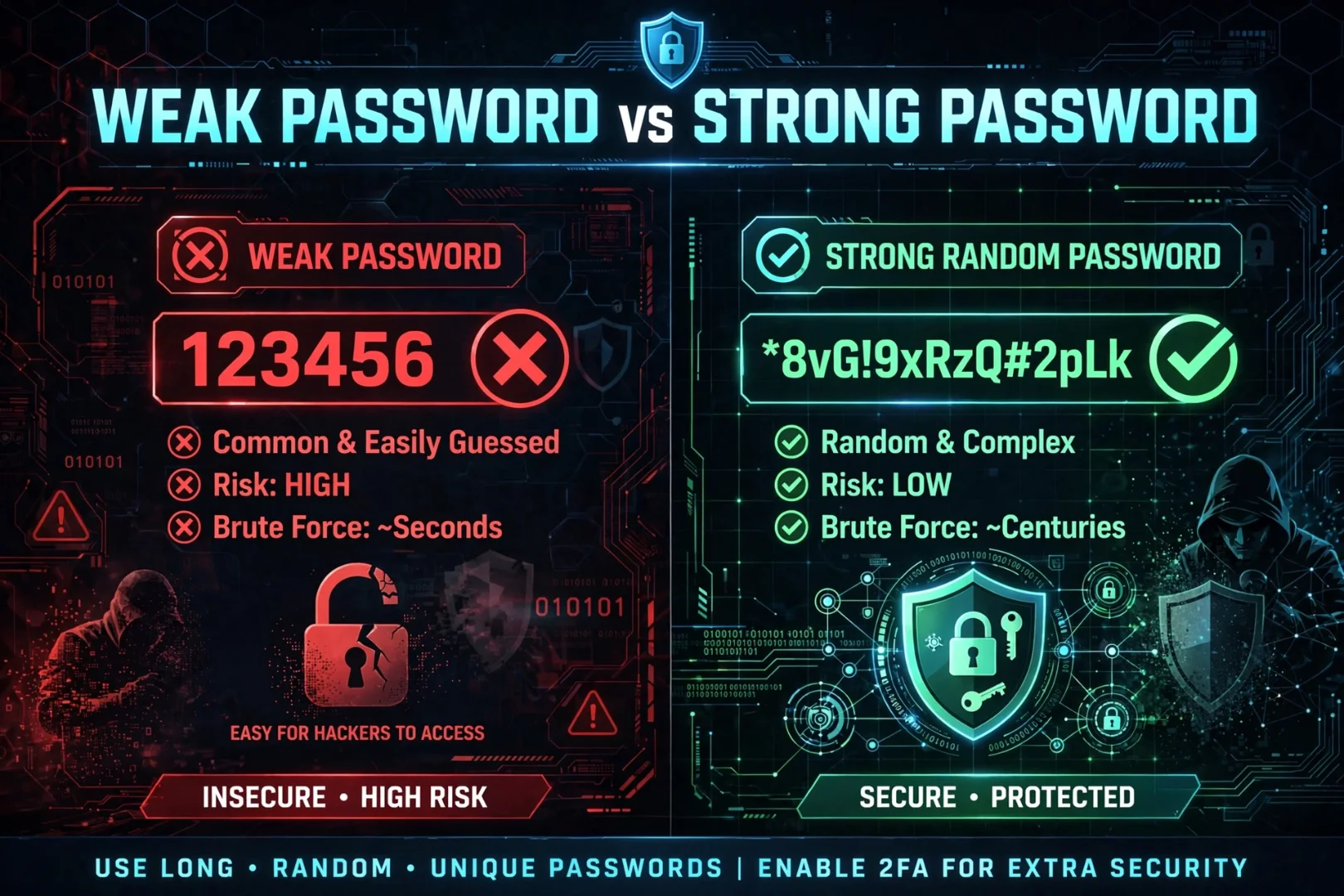
Your password is the lock on everything: your email, your bank, your photos, your work. And here's the uncomfortable truth — most people's locks are terrible. Birthdays. Pet names. Password123. Automated cracking tools chew through those in seconds, not minutes.
The problem isn't that people are careless. It's that humans are terrible at randomness. Our brains love patterns, so every "random" password we invent has our fingerprints all over it.
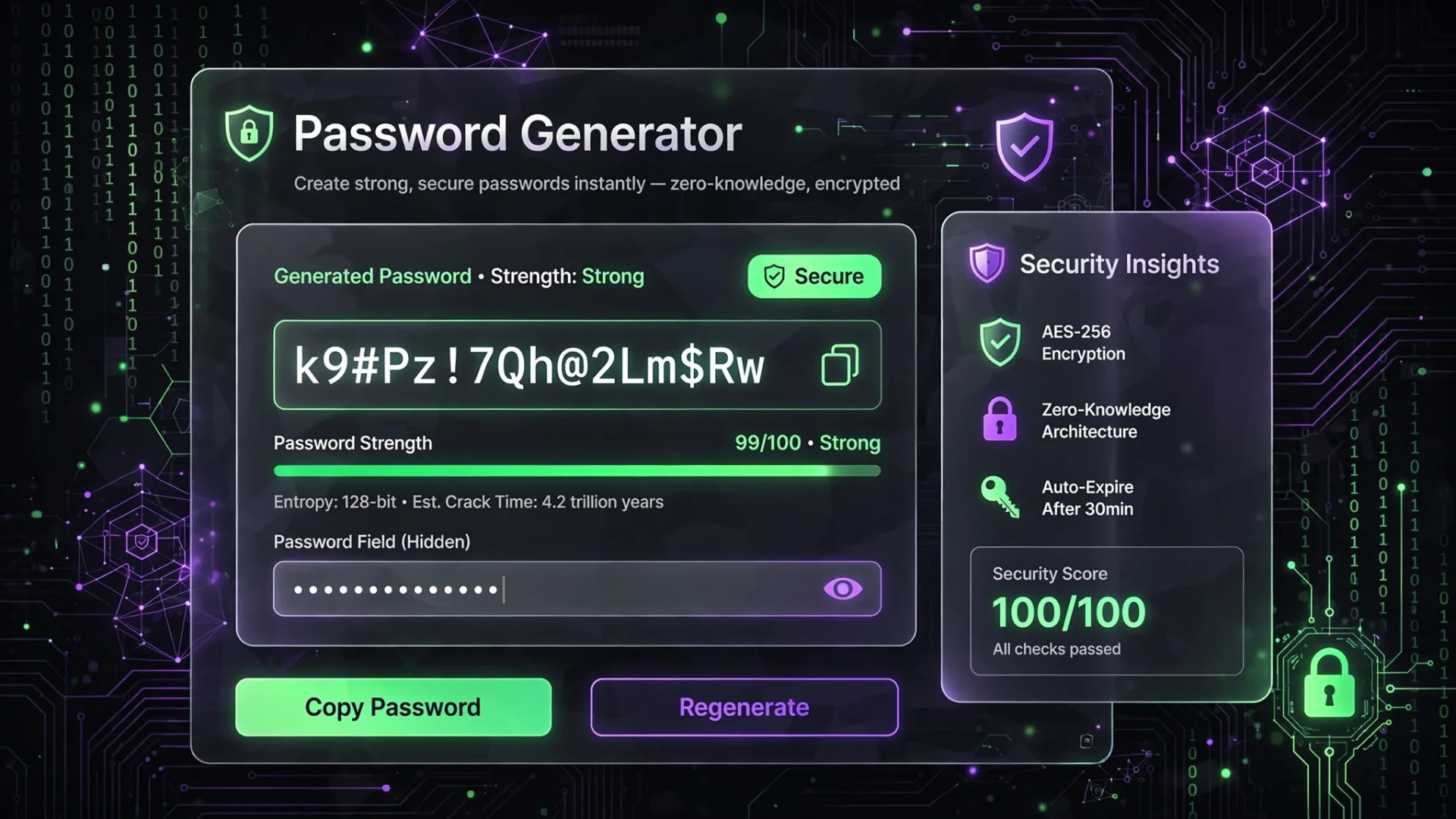
That's exactly what this free password generator fixes. It creates truly random, cryptographically secure passwords right inside your browser — using the same secure random technology browsers use for encryption. It offers seven different generation modes, shows your password's strength in bits, estimates how long it would survive a brute-force attack, warns you about weak patterns, and never sends a single password to any server.
Whether you need a 64-character monster for your password manager, a memorable passphrase for your Wi-Fi, a random PIN for your phone, or fifty passwords for a whole team at once — it's all in one place, free, with no signup.
Toolkit's Password Generator helps eliminate that risk by creating highly secure passwords directly inside your browser. It supports multiple generation methods, analyzes password strength, estimates how difficult a password is to crack, detects common weak patterns, and never sends your generated passwords to any server.
Why Strong Passwords Matter
Every online account stores valuable information. Your email, cloud storage, banking applications, shopping accounts, social media profiles, and work platforms all depend on a single secret: your password.
Weak passwords remain one of the leading causes of compromised accounts because attackers no longer rely on guessing manually. Instead, they use automated software capable of testing millions or even billions of password combinations every second.
A strong password significantly reduces the chances of unauthorized access by increasing the amount of time required to crack it through brute-force attacks.
Strong passwords also help protect:
Personal photos and files
Financial accounts
Business data
Social media accounts
Cloud storage
Developer environments
Wi-Fi networks
Online gaming accounts
Creating unique passwords for every account is equally important. If one website experiences a data breach, attackers often try the same password across dozens of popular services. This technique, known as credential stuffing, is one of the most common ways accounts are compromised.
What Makes a Password Truly Secure?
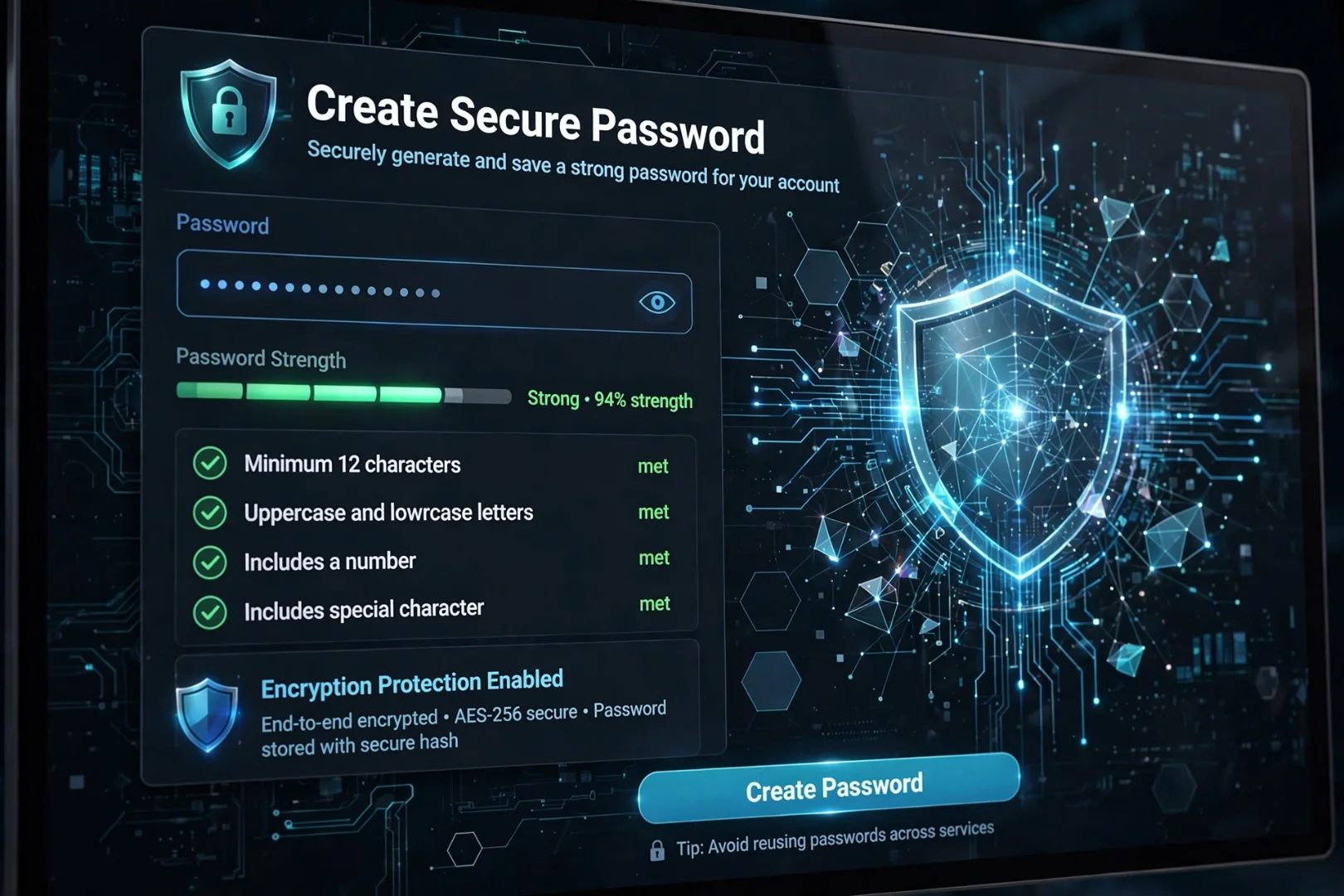
A secure password is more than just a random collection of letters and numbers. Several factors work together to determine how resistant a password is against modern attacks.
Length
Longer passwords are exponentially harder to crack than shorter ones. Increasing a password from 8 characters to 16 characters can make an enormous difference in security.
As a general guideline:
8 characters: Minimum acceptable
12 characters: Good for most accounts
16+ characters: Excellent security
24–32 characters: Recommended for password managers and highly sensitive accounts
Character Variety
Using multiple character types increases complexity. A secure password typically includes a mix of:
Uppercase letters
Lowercase letters
Numbers
Special symbols
ToolKit's allows you to enable or disable each character set depending on your requirements.
Randomness
Randomly generated passwords are much harder to predict than passwords based on names, birthdays, favorite sports teams, or keyboard patterns.
Unlike passwords created manually, randomly generated passwords remove human bias and significantly increase security.
Features of ToolKit's Password Generator
ToolKit packs seven password creation modes into one tool, built for beginners, professionals, developers, and system administrators alike. Here's what makes it different from the basic generators you've tried before.
Cryptographically Secure Random Generation
Every password is created using your browser's built-in cryptographic random engine (crypto.getRandomValues) — the strongest source of randomness available in a browser, the same technology behind HTTPS encryption. No Math.random shortcuts, no predictable patterns, and nothing ever sent to a server.
Full Control, Down to Every Character
You control password length (4 to 64 characters — most generators stop at 20), every character set (uppercase, lowercase, numbers, symbols), an "exclude confusing characters" option (so 0/O and 1/l never appear — perfect for passwords you type by hand), and even custom exclusions for websites that ban specific symbols.
Smart Presets for Instant Results
Not sure what to pick? Four one-click presets handle it: Standard (12 characters), Strong (16), Very Strong (24), and Maximum (32) — each with the ideal character mix pre-configured.
Live Strength Analysis With Entropy in Bits
Every generated password gets a color-coded strength meter, its entropy measured in bits, and a time-to-crack estimate — so you can see the security difference, not just hope for it.
Automatic Weak-Pattern Detection
The tool scans every password for repeated characters, sequences like 123 or abc, famous weak passwords like "password" and "qwerty," and letters-only or numbers-only weaknesses — then warns you before you use something risky.
Seven Generation Modes
Random passwords, speakable passwords, memorable passwords, passphrases, PINs, bulk generation, and a session history — each mode is built for a specific real-world situation, covered in detail below.
Multiple Password Types
Different situations require different types of passwords. Instead of offering only one generator, ToolKit provides six specialized modes:
Random Password Generator
Memorable Password Generator
Passphrase Generator
PIN Generator
Bulk Password Generator
Password History
Each mode is designed for a specific real-world scenario, allowing you to generate credentials that match your needs instead of forcing a one-size-fits-all solution.
Understanding Every Password Generation Mode
Seven modes, seven real-world situations. A banking password should not look like a password you type into a smart TV. Here's every mode, and exactly when to use each one.
1. Random Password Generator
This is the best choice when maximum security is your priority.
You can fully customize:
Password length
Uppercase letters
Lowercase letters
Numbers
Symbols
Exclude confusing characters
The generator uses cryptographically secure browser technology to create highly unpredictable passwords. It also guarantees that every enabled character type appears at least once, helping create balanced and secure passwords.
Best for:
Email accounts
Banking
Password managers
Cloud storage
Developer accounts
Administrative logins
2. Memorable Password Generator
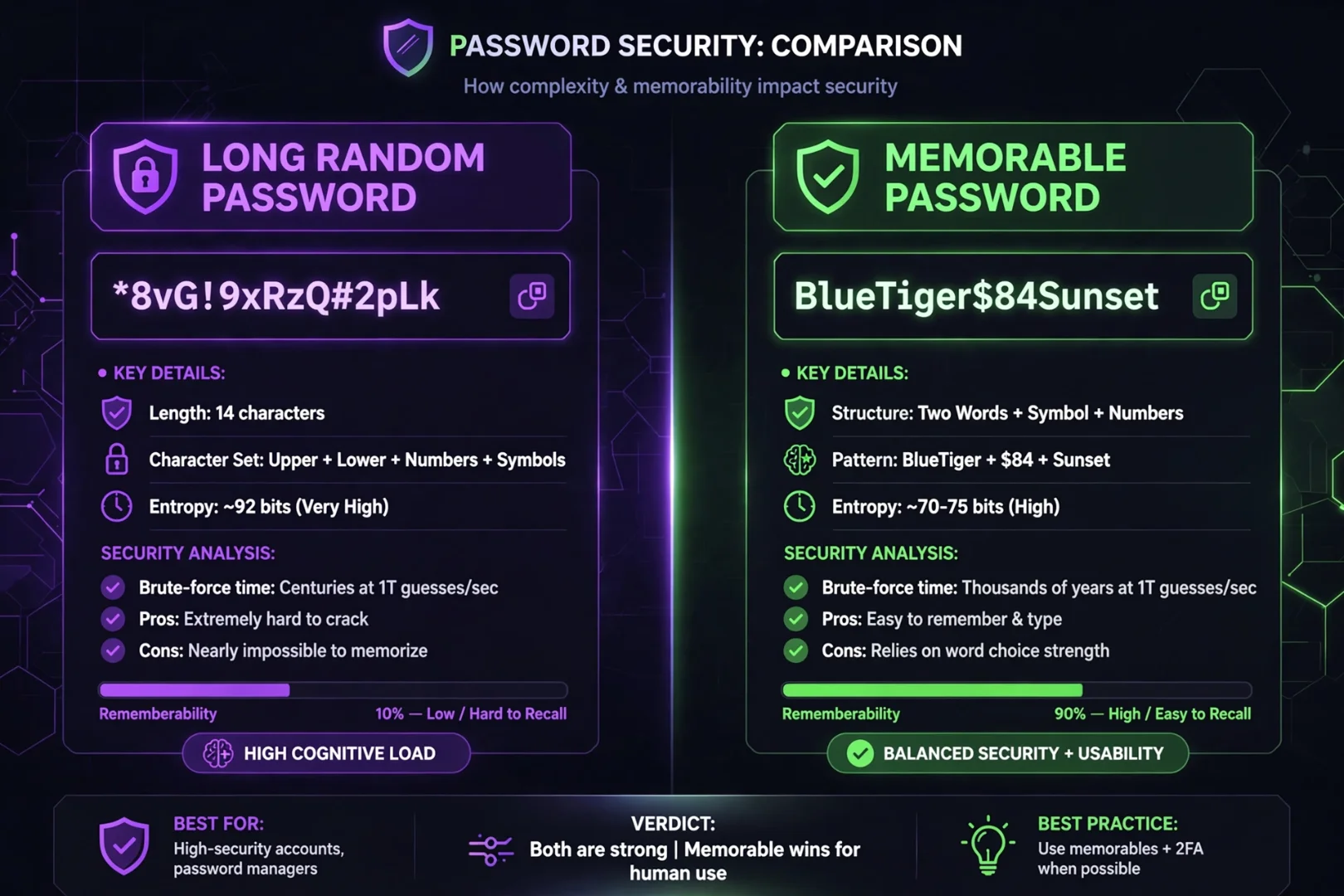
Long random passwords are extremely secure, but they can be difficult to remember.
The Memorable Password mode solves this by combining readable words, symbols, and numbers into passwords that are much easier to type without sacrificing too much security.
Example:
Blue$Tiger392
These passwords strike an excellent balance between usability and protection.
Best for:
Home Wi-Fi
Family accounts
Shared devices
Frequently typed passwords
3. Speakable Password Generator
The most overlooked — and most useful — mode. Speakable passwords are built from alternating consonants and vowels, so they're actually pronounceable, like:
votaru-kefina-72Why does that matter? Because pronounceable passwords can be read aloud, dictated to a colleague, typed on a TV remote without squinting, or communicated over a phone call — while staying completely random and secure. Try doing that with xK9#mQ2v.
Best for:
Office Wi-Fi you have to share verbally
IT support and help desks
Reading passwords across a room or a phone call
Any password you'll ever need to say out loud
4. Passphrase Generator
Passphrases use multiple words instead of random characters.
Example:
castle.forest.thunder
Although they look simple, long passphrases can be extremely secure while remaining easy to remember and type.
ToolKit lets you:
Choose between 3 and 8 words
Select different separators
Generate multiple unique combinations instantly
This mode is ideal for users who prefer memorization over storing passwords.
Best for:
Password manager master passwords
Wi-Fi passwords
Personal devices
Business accounts
5. PIN Generator
Many devices still rely on numeric PINs — and humans pick terrible ones. Studies of leaked PINs show that 1234, 0000, and 1111 cover a shocking share of all PINs in use, and birthdays are barely better because attackers check them first.
The PIN Generator creates random PINs in four lengths — 4, 6, 8, or 10 digits — and automatically avoids the infamous weak patterns. It also warns you honestly: anything shorter than 6 digits is only suitable for low-security devices.
ToolKit creates random PINs in common lengths:
4 digits
6 digits
8 digits
10 digits
Best for:
Mobile phones
ATM cards
Smart locks
Door access systems
6. Bulk Password Generator
Need dozens of secure passwords?
Instead of generating them one by one, Bulk Mode allows you to create up to 50 unique passwords at once.
The generated list can be copied with a single click, making it useful for IT administrators, developers, and testing environments.
Best for:
Team onboarding
Temporary accounts
Development databases
Classroom environments
QA testing
7. Password History
The History section stores your recently generated passwords during your current session.
This makes it easy to:
Compare generated passwords
Recover one you forgot to copy
Quickly reuse a recently generated credential
Because everything happens locally inside your browser, no passwords are uploaded to external servers.
Password Strength Analysis — Score, Entropy & Crack Time
Generating a password is only half the job. Knowing whether it's actually strong is the other half — and this is where most generators stop, but ToolKit goes further.
The Color-Coded Strength Meter
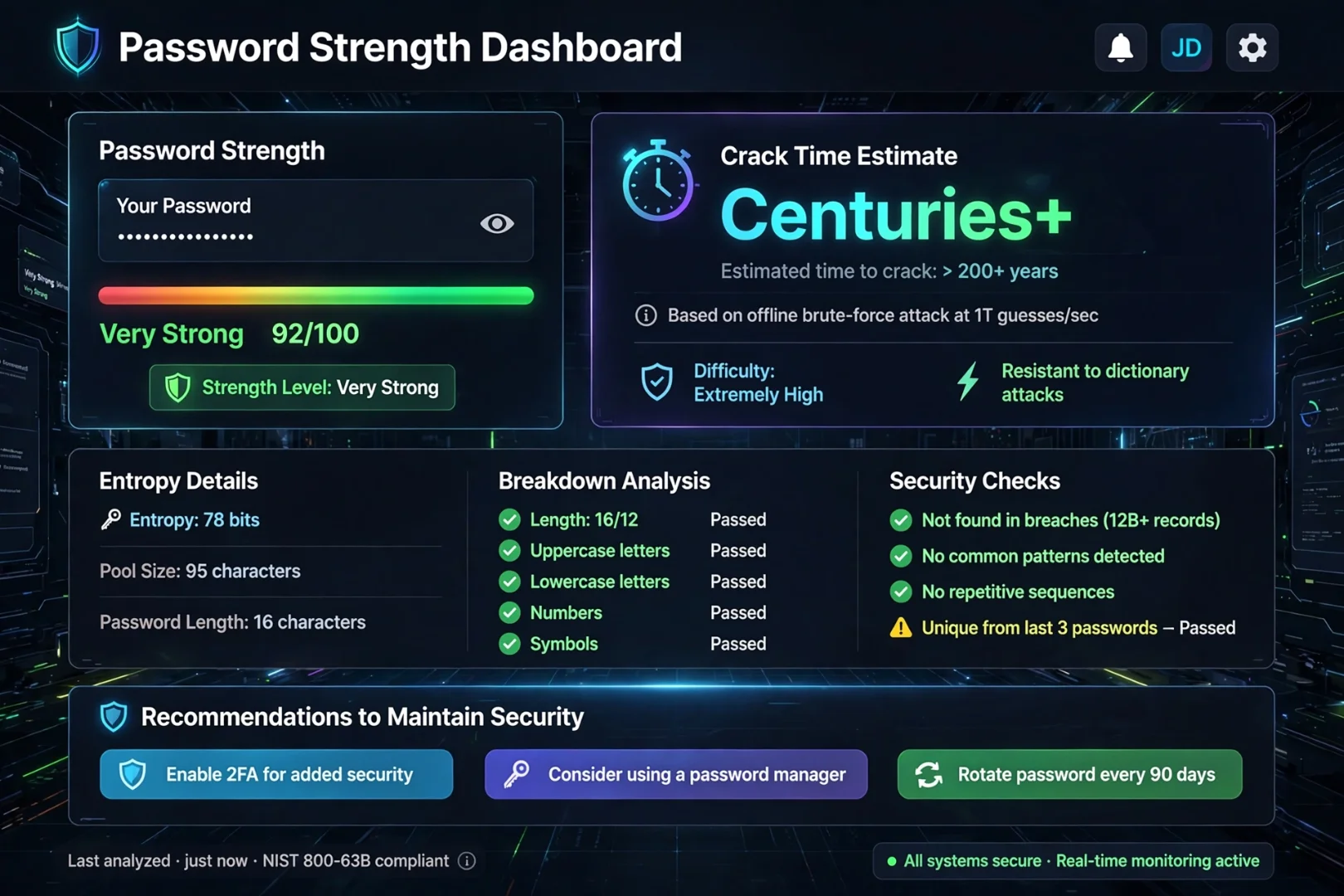
Every password is instantly scored on length and character diversity, then displayed on a color-coded meter from red ("Very Weak") through orange and yellow to purple ("Extremely Strong"). Fix your settings and watch the meter climb in real time.
Entropy Measured in Bits
Below the meter, the tool shows your password's entropy — the mathematical measure of its unpredictability, in bits. More bits means more possible combinations means longer to crack. A 16-character password with all four character types sits around 100 bits; an 8-character letters-only password barely reaches 37. Once you see the two numbers side by side, you'll never look at short passwords the same way again.
Time-to-Crack Estimates
Instead of raw math, the tool translates entropy into plain language: "Instantly," "Few months," "Decades," "Centuries+." These are simplified estimates — real attacks vary — but they're perfect for comparing options at a glance.
Weak-Pattern Detection
Strong passwords aren't just random — they also avoid predictable patterns. The tool automatically checks every password for repeated characters, sequential numbers (123), sequential letters (abc), letters-only or numbers-only builds, and famous weak words like "password," "qwerty," and "letmein."
If a warning appears, regenerate. If you see "No weak patterns detected!" — you're safe to copy and use it.
Weak Password Detection
Strong passwords are not just random.
They also avoid predictable patterns.
ToolKit automatically checks generated passwords for common weaknesses, including:
Repeated characters
Sequential letters
Sequential numbers
Letters-only passwords
Numbers-only passwords
Common dictionary words
Popular weak password patterns
If no common weaknesses are found, the tool confirms that no obvious patterns were detected.
This additional analysis helps users avoid passwords that may appear complex but are actually easy for attackers to predict.
Is the Password Generator Safe?
Yes.
ToolKit is designed with privacy in mind.
Everything happens directly inside your browser.
That means:
Your passwords never leave your device.
No passwords are uploaded.
No accounts are required.
No personal information is collected during generation.
The tool continues to work even without an internet connection after the website has loaded.
This makes it suitable for generating passwords for both personal and professional use.
Real-World Examples
Creating a New Email Account
Generate a 20-character random password containing uppercase letters, lowercase letters, numbers, and symbols.
Store it in a password manager for maximum security.
Securing Your Home Wi-Fi
Generate a four-word passphrase that's easy to read but difficult to guess.
Locking a Smartphone
Use the PIN Generator to create a random six-digit PIN instead of choosing a birthday or repeated numbers.
Managing Company Accounts
IT administrators can generate dozens of unique passwords at once using Bulk Mode, reducing manual work and improving account security.
Best Practices for Strong Passwords
To get the most from any password generator:
Use a different password for every account.
Choose longer passwords whenever possible.
Store complex passwords in a trusted password manager.
Enable two-factor authentication (2FA) whenever available.
Update passwords immediately after a known data breach.
Avoid using personal information such as names or birthdays.
Never share passwords through email or unsecured messaging apps.
Common Password Mistakes
Many security problems come from habits rather than technology.
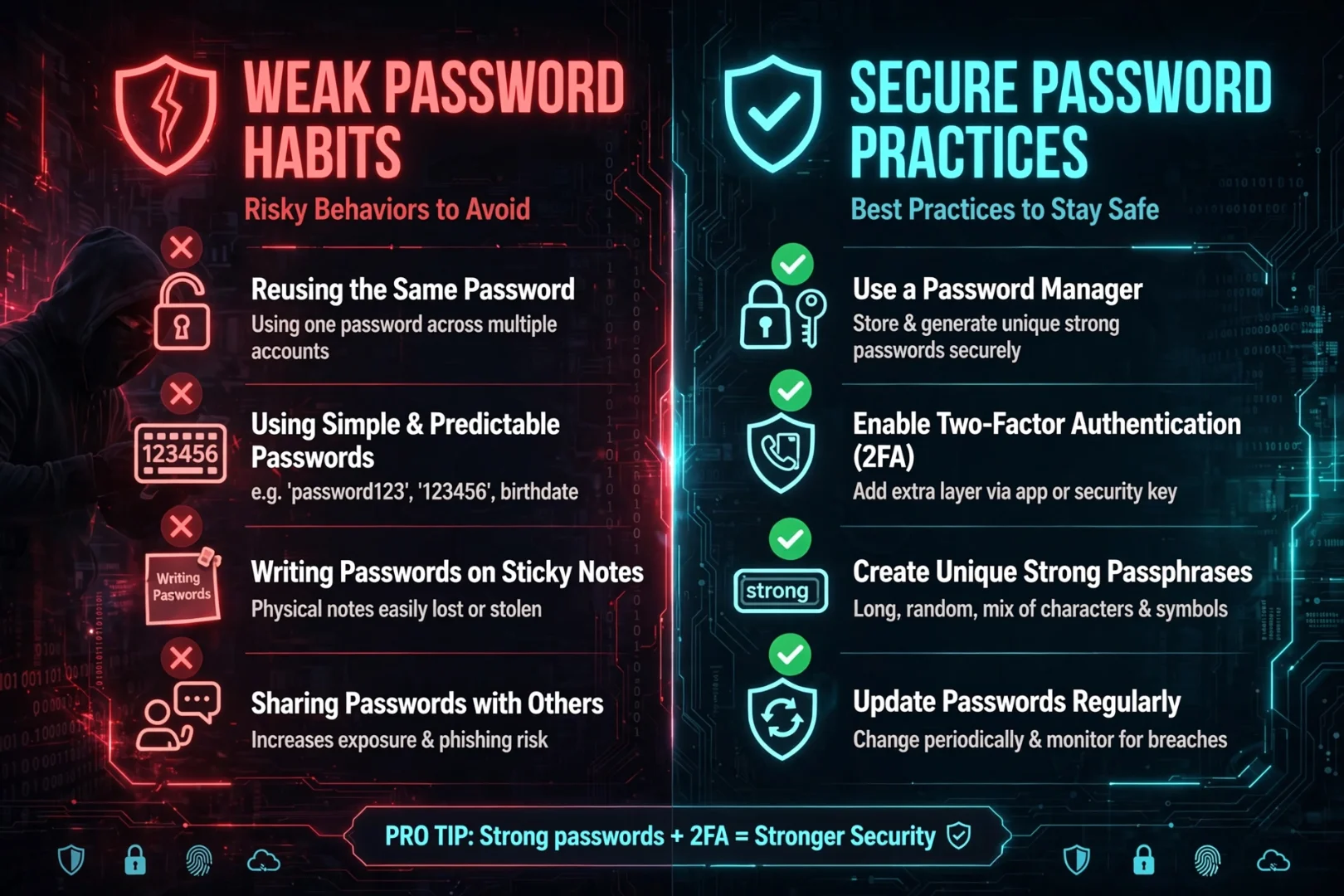
Avoid these common mistakes:
❌ Reusing one password across multiple websites.
❌ Using names, birthdays, or phone numbers.
❌ Choosing short passwords.
❌ Saving passwords in plain text documents.
❌ Sharing passwords with others.
❌ Ignoring security warnings after a data breach.
Related Tools
If you're working with passwords and security, a few more free tools on useminitools.com fit naturally into your routine:
Hash Generator — create cryptographic hashes (MD5, SHA-256 and more) for verifying files and data.
Base64 Encoder/Decoder — encode and decode text and files, the encoding scheme behind many credential systems.
QR Code Generator — turn a Wi-Fi password or URL into a scannable QR code, so you can share access without typing it aloud.
Word Counter — analyze word counts and readability for any text, including long passphrases.
Text Case Converter — fix capitalization mistakes in pasted credentials or code in one click.
Frequently Asked Questions
Is this Password Generator free?
Yes. All password generation features are available free of charge.
Are my passwords stored?
No. Password generation happens entirely inside your browser.
Which mode should I choose?
Use Random Passwords for maximum security, Memorable Passwords when you need something easier to type, Passphrases for easy memorization, PINs for numeric security codes, and Bulk Mode when generating multiple passwords at once.
How long should my password be?
For most online accounts, 12 to 16 characters provide excellent protection. Highly sensitive accounts benefit from 20 to 32 characters.
Can I use these passwords for banking?
Yes. Strong, randomly generated passwords are well suited for banking, email, business, and other sensitive accounts.
Do password generators create the same password for everyone?
No. This generator uses your browser's cryptographic random engine at the moment you click — every password is created fresh and unique for you. Nothing is pre-generated, stored, or reused.
What is the strongest type of password?
The strongest practical password is long (16+ characters), mixes all four character types, and is completely random — which is exactly what the main Generator mode produces. For memorability with security, a 5+ word passphrase is the best alternative.
Can I generate passwords that are easy to type on a TV or console?
Yes — two ways. Use "Speakable" mode for pronounceable passwords like votaru-kefina-72, or enable "Exclude confusing characters" so lookalikes like 0/O and 1/l never appear. Both exist specifically for passwords you type by hand.
Make Every Account Harder to Crack Than the Next
Password security sounds intimidating, but it comes down to one habit: stop inventing passwords yourself. Humans are predictable, and predictability is exactly what cracking tools exploit. A cryptographically secure generator removes that weakness completely.
ToolKit's Password Generator gives you seven specialized modes, live strength analysis with entropy in bits, honest crack-time estimates, automatic weak-pattern detection, and complete privacy — everything runs inside your browser, and nothing you generate ever touches a server.
Whether you're protecting one personal email or onboarding an entire team, stronger passwords are two minutes away.
Open the free Password Generator on useminitools.com, generate your first secure password, and make your very next login the safest one you've ever had.
Start generating secure passwords today and make every new account safer from the very first login.
Cipher
Founder & Lead Developer, ToolKit
Cipher is an independent developer who prefers to let the work speak for itself. They designed and coded every tool on ToolKit to ensure they remain fast, private, and beautifully designed for everyone. No fame, no face — just premium tools that work.
