 Translate
OCR Online Free: Extract Text from Any Image or Scanned PDF
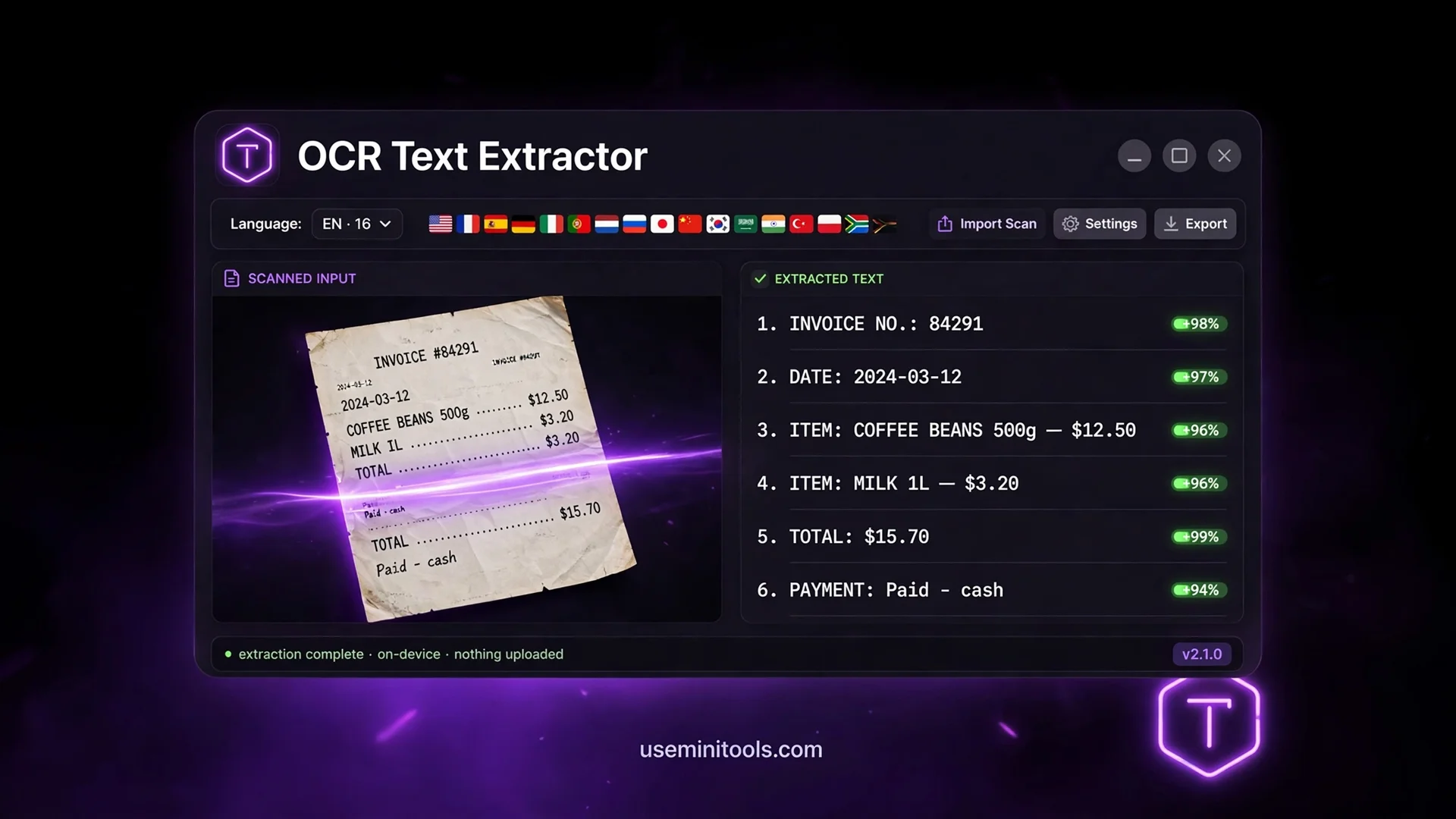
The first time I truly understood what OCR means, I was sitting with a seventeen-page scanned contract and a client waiting. No editable copy existed — just photos of paper. So I did what people have done for decades: I typed it. Every clause. Every date. It took an entire evening, and I still caught three typos a week later.
That evening is why this tool exists. The technology to skip all of it has been sitting inside browsers for years — free, private, and mostly unknown. This guide walks through the OCR Text Extractor honestly: what it reads, what it fixes, where it still fails, and the small tricks that turn rough scans into text you can actually use.
It Reads More Than Images — That's the First Surprise
Most people arrive expecting one thing: a picture goes in, text comes out. That works here — JPG, PNG, WebP, GIF and BMP photos and scans all run through real OCR. But the quieter superpower is what happens with everything else you can drop in.
Word documents, Excel workbooks, CSV files and plain text files are not OCR'd at all. They are parsed directly — the tool opens the file structure and lifts out every character exactly as it exists. No recognition, no guesses, no errors. A Word document arrives with its tables intact. An Excel workbook arrives with every sheet listed in tabs, switchable with one click. The tool tells you plainly when this happens: parsed instantly, every character exact.
Two Kinds of PDF, Two Engines — Chosen For You
The PDF handling is where most OCR tools quietly fail, and where this one does something smarter. There are actually two kinds of PDF files wearing the same extension.
A digital PDF — exported from Word, downloaded from a website — already contains a perfect text layer hidden inside. For these, the tool detects the text automatically and uses its native extraction engine: instant, and every character is pixel-perfect because nothing was ever an image.
A scanned PDF is just photographs of pages wearing a PDF costume. Select-all does nothing. For these, the tool switches to its OCR engine and reads the pages visually. You never have to figure out which kind you have — the tool checks on upload and picks the right engine, with a button to switch manually if you disagree.
Sixteen Languages, Including the Ones That Matter Most
Most free OCR quietly assumes English. Run a Turkish receipt or an Urdu letter through one and you get confident nonsense.
The language selector here covers sixteen: English, Urdu, Arabic, Spanish, French, German, Italian, Portuguese, Russian, Turkish, Hindi, Bengali, Chinese in both Simplified and Traditional, Japanese and Korean. Pick the language before extracting — the recognition engine uses completely different letter-shape patterns per script, and matching the language is the single biggest accuracy lever you control.
Arabic and Urdu get one extra layer of care: right-to-left handling carries through to the Word export, so the direction of your text survives the journey instead of arriving scrambled.
One honest note on mixed-language pages: an English header on an Arabic letterhead will produce a few stray words in the wrong script. Extract in the language of the main body, fix the handful of strays by hand. No OCR handles mixed scripts gracefully — pretending otherwise is how tools earn distrust.
The Pre-Processing Lab: Fix the Scan Before the Scan
OCR quality is decided less by software cleverness and more by what you feed it. Crooked, gray, shadowy input produces smudged recognition — a "rn" read as "m", a comma mistaken for a period. So the tool gives you a lab to fix the input first, with a live preview showing exactly what the engine will see.
Resolution boost — three levels up to 3x. The single biggest accuracy gain for small text like receipts and footnotes
Grayscale — strips color noise away and leaves pure letter shapes (on by default, for good reason)
Invert colors — the forgotten one. White text on dark screenshots confuses every OCR engine; inverting turns it into normal dark-on-light instantly
Contrast and brightness sliders — lifts faint pencil, tames shadows, pushes washed-out faxes back into existence
Thirty seconds in this lab rescues more words than any amount of cleverness downstream. Crooked phone photo, harsh shadow, tiny print — straighten it, brighten it, boost it, then extract.
Confidence Scores: Know Exactly Which Words to Doubt
Blind trust is the real danger of OCR. A number recognized as 547 instead of 542 looks perfectly natural in a paragraph — nobody catches it by re-reading. This is the feature that fixes it.
Every recognized word receives a confidence score from the engine, and the results view colors the text by it: green for solid reads, amber for doubtful ones, red for words the engine essentially guessed. An overall confidence badge sums up the whole document at a glance. Instead of proofreading seventeen pages hunting for ghosts, you look at exactly the highlighted words that need a human eye.
For invoices, account numbers, grades and dosages — anything numeric — this is the difference between catching an error and living with one.
Tables: Rebuild Them, Edit Them, Keep Them
Plain text flattens tables into confusion. This tool fights back twice.
First, the table view can rebuild structure from raw text automatically — it auto-detects the separator (spaces, tabs, pipes, semicolons or commas) and snaps the lines into a real grid. Second, the grid is editable: click any cell and fix it in place, because OCR on tables is good but never perfect, and fixing inside the tool beats round-tripping to Excel.
When the source file is a spreadsheet, the tables arrive perfectly from the start — and multi-sheet workbooks keep every sheet, one tab each.
Five Export Formats, Matched to the Job After
Extracted text is the beginning, not the finish. The export bar offers five destinations, and each one exists for a reason:
Export as | Best for | What you get |
|---|---|---|
TXT | Quick copy-paste anywhere | Pure text, zero formatting |
DOCX | Editing in Word or Google Docs | Real paragraphs, RTL preserved for Arabic and Urdu |
XLSX | Tables and spreadsheets | Real grid; multi-sheet workbooks keep every sheet |
CSV | Clean data for developers | Structured rows, opens in anything |
HTML | Publishing or archiving | Ready-to-view page with the text inside |
The exports respect your content's direction too — Arabic and Urdu text exports to Word with right-to-left formatting preserved. One honest absence: there is no PDF export here. If a file needs to change shape entirely rather than be read — a document becoming a PDF, a spreadsheet reshuffling into CSV — the [free file converter](https://useminitools.com/tools/file-converter) handles that family of jobs in the same browser, nothing uploaded.
Where OCR Still Fails — Read Before Trusting It
Every tool article that only lists wins is selling something. The honest failure modes:
Handwriting. Neat block print sometimes survives; cursive defeats it. Some handwriting defeats other humans — it defeats OCR too
Low-resolution photos. Under roughly 150 DPI of effective detail, letters stop being letters. Move closer, add light, retake the shot
Complex layouts. Multi-column magazines, text wrapping around images, watermarks behind text — reading order gets confused
Old .doc files. Legacy Word format is not supported — the tool says so on arrival and asks for a Save As .docx, which takes ten seconds
The flagged words. The red and amber ones in the confidence view. That highlight is the system working — check them
And when the text comes out with small typos — a wrong letter, a missing comma — run it through the [free grammar checker](https://useminitools.com/tools/grammar-checker) before sending it anywhere. It catches exactly the class of small errors OCR leaves behind.
The Privacy Part, Stated Plainly
Documents people need to read back are often private — contracts, ID scans, medical letters, school reports. Most OCR websites upload those to a server, process them there, and promise to delete them later. A promise is not a mechanism.
Here, recognition runs inside the browser on your own device. Load the page, then switch off your WiFi — the tool keeps working, because there is no server involved at any step. The language file downloads once, lives in your browser afterward, and every document you ever process stays on the machine it started on.
Frequently Asked Questions
Is the OCR accurate enough to trust without checking?
For clean printed text in the right language, usually yes. But the confidence view exists precisely because "usually" is not a guarantee — the tool flags the doubtful words, you check those, and the rest you trust.
Does it work with handwriting?
Neat block printing, sometimes well. Cursive handwriting, generally no — the shapes vary too much between writers. Try it on a small section before committing a full page.
Is it safe for private documents?
In this tool, yes — everything runs on your device and nothing is uploaded. You can prove it: load the page, disconnect the internet, and extract. For upload-based services, safety is whatever their privacy policy says, and no more.
Can it read a scanned PDF with many pages?
Yes — multi-page scanned PDFs run page by page with live progress, and you can cancel mid-run if something looks wrong. The text returns as one continuous document.
What file types does it accept?
Images (JPG, PNG, WebP, GIF, BMP) and scanned PDFs go through OCR. Digital PDFs get instant native extraction. Word documents, Excel workbooks, CSV and text files are parsed directly with zero recognition error.
Why did it tell me my .doc file is not supported?
The legacy Word format predates modern parsing. Open it in Word or Google Docs, Save As .docx, and bring that back — the whole flow takes under a minute.
Final Words
That evening retyping seventeen pages taught me something that stuck: the most exhausting part of any task is usually the part a machine can do — if only you know it exists. Photographs of documents are dead ends no more. Drop the scan into the [ocr online free](https://useminitools.com/tools/ocr-text-extractor) tool, watch the words lift off the paper, glance at the highlighted uncertain bits, and keep your evening. What once took hours of typing now takes minutes of watching — and your documents never leave your hands along the way.

Cipher
Founder & Lead Developer, ToolKit
Cipher is an independent developer who prefers to let the work speak for itself. He designed and coded every tool on ToolKit to ensure they remain fast, private, and beautifully designed for everyone. Focused on building premium browser-based utilities that respect user privacy.
