Favicon Generator | Create .ico from Any Image Free
Favicon Generator: Create .ico from Any Image (Free)
You have spent hours designing your website. You have perfected the colors, the typography, and the layout. You launch it, open a browser tab, and stare at the address bar.
There is no icon.
Just a generic, blank globe sitting next to your URL. It makes your site look unfinished. It makes your brand look forgettable.
A favicon is that tiny 16x16 pixel icon that appears in browser tabs, bookmarks, and history lists. It is the smallest piece of your brand, but it is the most seen. Every time a user opens a tab, they see it. Every time they bookmark your site, they look for it.
If you do not have one, you are losing brand recognition every single day.
The Favicon Generator at useminitools.com was built to solve this problem in 60 seconds. You do not need Photoshop. You do not need to understand complex image formats. You just need an idea.
What is a Favicon Generator?
A favicon generator is an online tool that takes a source image, text, or emoji and converts it into the specific file formats required by web browsers to display an icon in the address bar.
The most common format is the .ico file. But modern web design requires more than just an .ico file.
Apple devices need a 180x180 pixel apple-touch-icon.png. Android devices need a 512x512 pixel maskable icon for their Progressive Web App (PWA) manifests. Windows tiles need specific sizes.
Our tool handles all of this automatically. You design the icon, and the engine generates the complete package: the .ico file, the various .png sizes, the site.webmanifest, and the HTML code to paste into your website's <head>.
How to Use the Favicon Generator
You do not need an account or design skills. The tool is split into three main creation modes, plus deep customization options.
The Text Tab: Typography Icons
If you do not have a logo yet, text is the fastest way to create a professional favicon.
Enter your text: You can type up to 2 characters (like "T" for ToolKit or "JS" for JavaScript).
Font Style: Choose from Bold, Normal, or Italic.
Text Color: Use the color picker or quick presets (White, Black, Purple, Green) to set the color of your letters.
Font Size: Use the slider to scale your text. The tool automatically scales it to look perfect at tiny 16x16 sizes and large 256x256 sizes.
The Emoji Tab: Instant Color and Personality
Emojis are universally recognized and render perfectly on almost every device.
Type or paste any emoji into the box, or click one of the 24 popular presets (🚀, 🔥, 💎, etc.).
The tool will automatically center the emoji and scale it to fit the favicon frame. It is the absolute fastest way to get a colorful, modern favicon without drawing a single pixel.
The Image Tab: Upload Your Own Logo
If you already have a brand logo in PNG, JPG, or SVG format, this is the tab for you.
Drag and Drop: Drag your image file into the upload zone, or click to browse your computer.
Fit Mode: This is crucial. If your image is not a perfect square, you can choose how the tool handles it. "Cover" will crop the image to fill the square (great for full-bleed logos). "Contain" will shrink the entire image to fit inside the square (great for logos with text that shouldn't be cut off).
Customizing the Background and Shape
Your favicon needs to stand out against the white or dark gray background of a browser tab. The Background settings give you full control over the canvas behind your icon.
Solid Colors vs. Gradients
Toggle the "Use Gradient Background" switch to turn your flat color into a dynamic, two-color gradient. You can pick custom hex codes for Color 1 and Color 2, or use one of the quick presets like "Purple-Green" or "Blue-Purple".
Corner Radius: Square to Circle
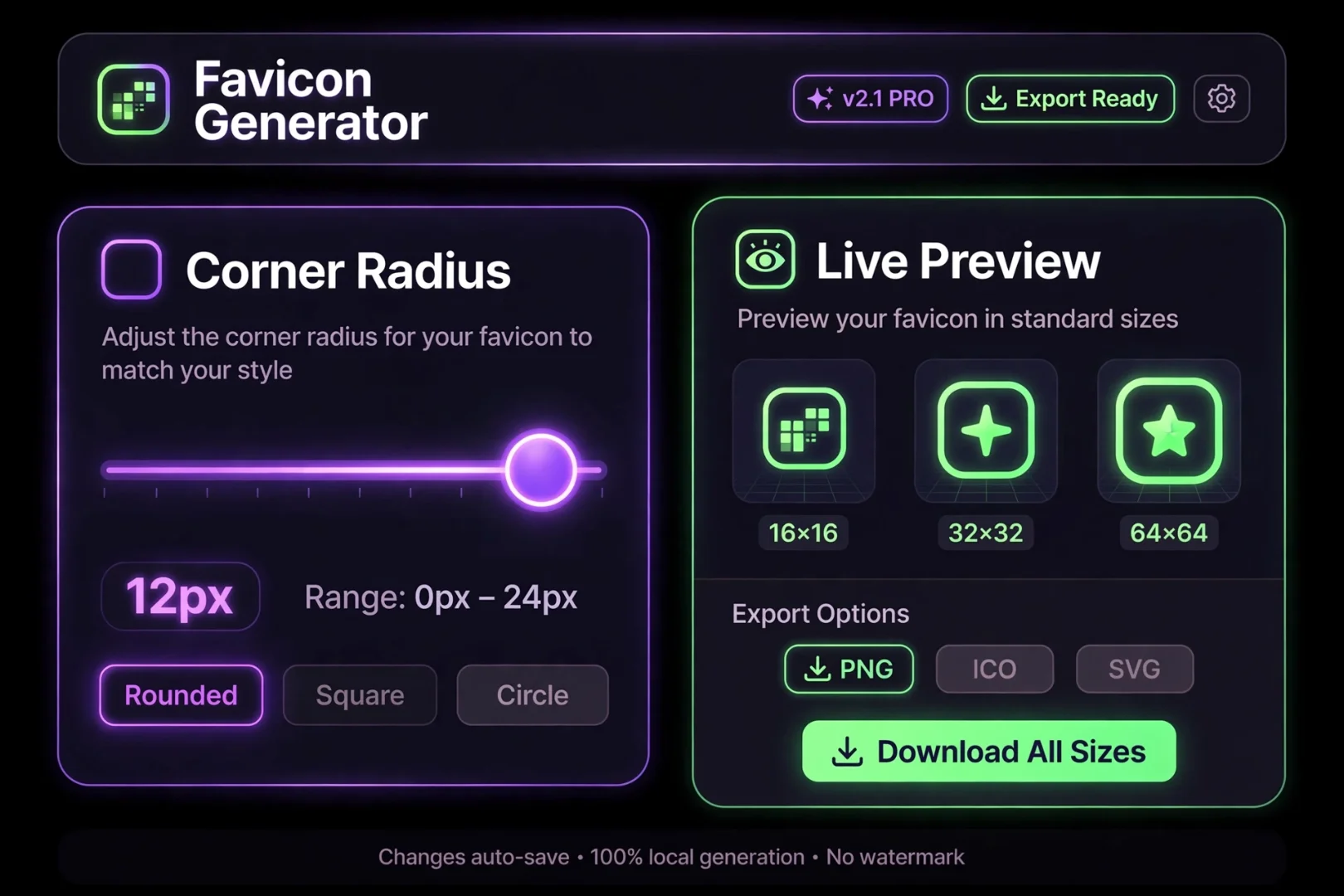
Most modern favicons are either perfectly square or perfectly round. Use the "Corner Radius" slider to adjust the shape of your icon's background.
0%: A sharp, flat square.
25%: A softly rounded square (like app icons).
50%: A perfect circle.
The Live Preview and Browser Mockup
One of the worst things about generating a favicon is realizing it looks terrible once it is actually live in a browser tab.
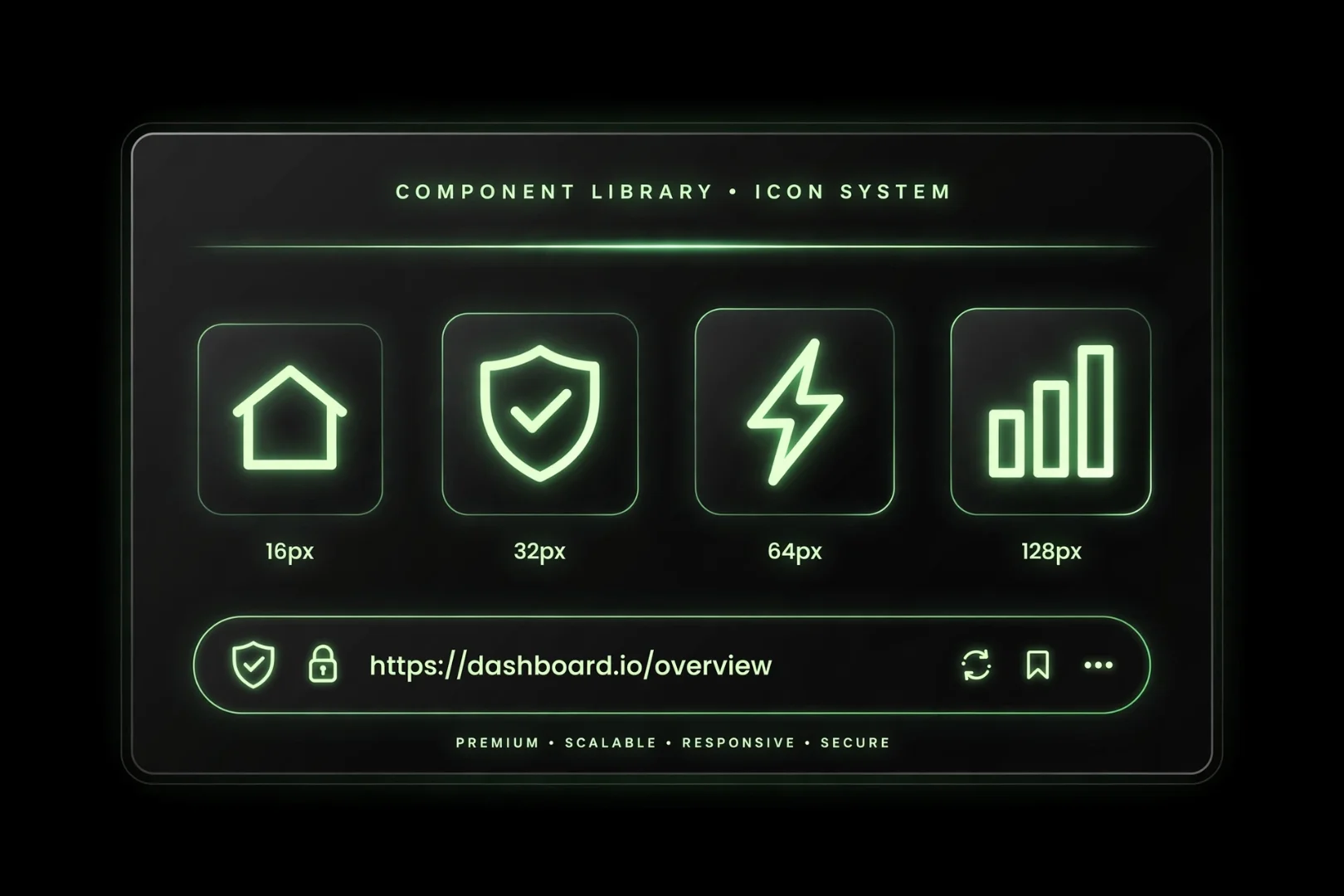
This tool solves that with a Live Preview system. As you change settings, the engine instantly draws your favicon at 6 different sizes (256px down to 16px).
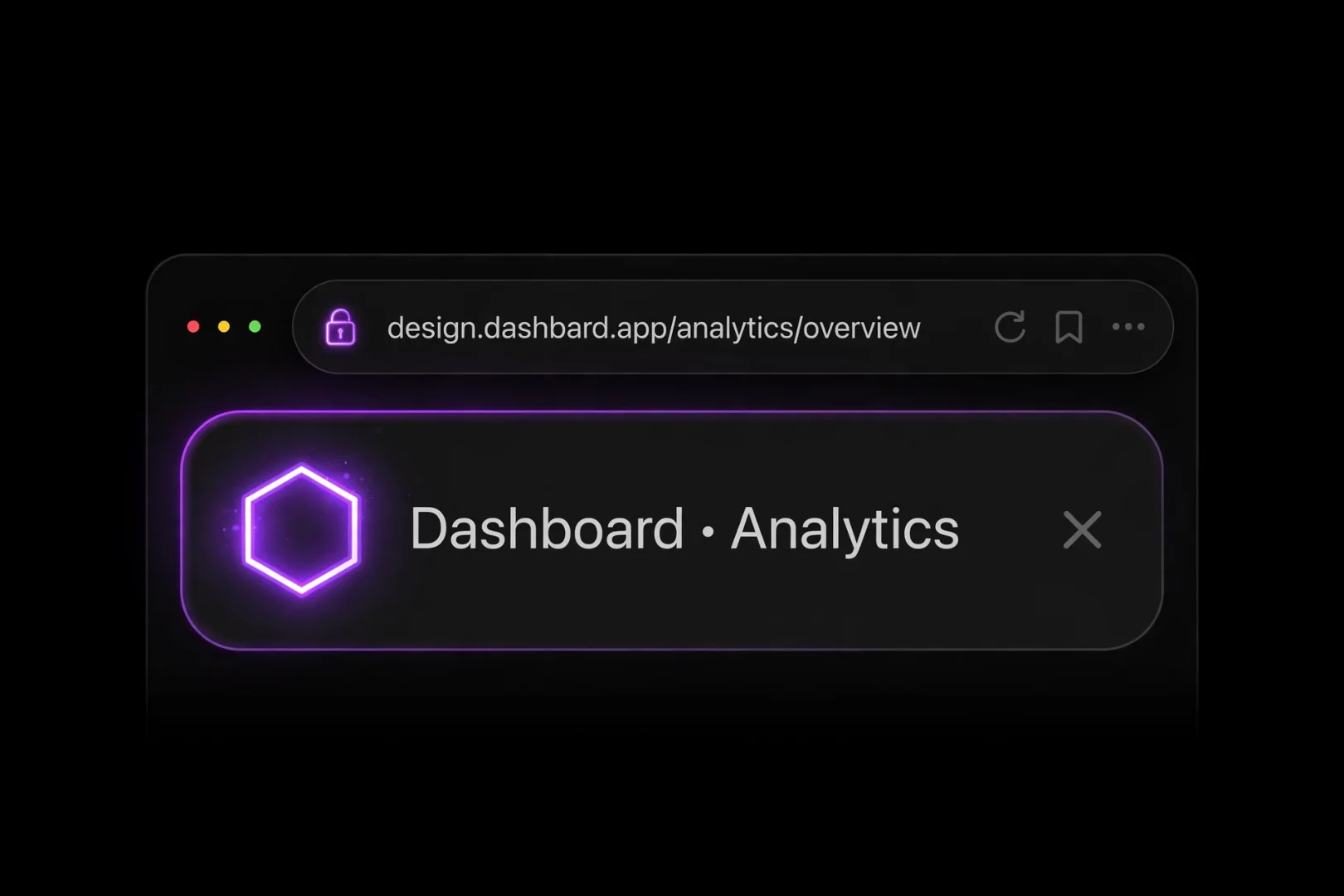
Even better, it includes a Browser Mockup. You can type your website's name into the "Preview with website title" box, and the tool will render a fake browser tab showing exactly how your favicon will look next to your site's name. If it looks blurry or unrecognizable at 16x16, you can adjust the settings before you download anything.
What is Inside the Download Package?
When you click "Generate All Favicon Sizes", the engine works instantly in your browser. When you click "Download All (ZIP + ICO + Manifest)", you get a complete, production-ready package.
Here is exactly what is inside that ZIP file:
8 PNG Files: Ranging from 16x16 up to 512x512 pixels.
1 Multi-Resolution .ico File: A true binary ICO file containing the 16x16, 32x32, and 48x48 sizes inside one single file.
apple-touch-icon.png: A dedicated 180x180 image specifically formatted for iOS devices when users add your site to their home screen.
site.webmanifest: The JSON file required for Android PWA support, telling phones how to display your icon.
favicon-html.txt: The exact HTML
<link>tags you need to paste into your website's<head>section.
How to Add the Favicon to Your Website
Once you have your ZIP file, installing the favicon takes about 30 seconds.
Unzip the file: Extract all the
.pngfiles, the.icofile, and thesite.webmanifestfile.Upload to Root: Upload these files to the "root" folder of your website (the same folder where your
index.htmlfile lives).Copy the HTML: Open the
favicon-html.txtfile and copy the code.Paste in Head: Open your website's HTML file and paste the code inside the
<head>tags, right below your<title>tag.Save and Refresh: Save your HTML file, upload it, and hard refresh your browser (Ctrl + Shift + R). Your new favicon will appear instantly.
Why Do Favicons Matter for SEO and Branding?
You might think a favicon is just a visual detail. But Google cares deeply about user experience.
If a user opens 20 browser tabs, and 19 of them have favicons but yours is blank, your tab blends into the background. The user has to search for it. If they can't find it quickly, they might close it.
A clear, recognizable favicon helps users find your site instantly. This increases "dwell time" (how long they stay on your site) and decreases "bounce rate". Both of these are behavioral signals Google uses to determine if your site is valuable.
Furthermore, when users bookmark your site, the favicon is the visual anchor they will scan for later. No favicon means no bookmarks.
Is This Tool Free and Safe?
Yes. 100% free and 100% private.
Every single pixel of your favicon is drawn directly inside your browser using HTML5 Canvas. Your uploaded images or typed text are never sent to a server. You can use this tool to generate a favicon for a confidential corporate website without worrying about your logo leaking.
Fun Ways to Use the Favicon Generator
You do not have to be launching a new website to use this tool. Try using it to:
Create a PWA icon: If you are building a mobile web app, use the Image tab to upload your logo and get the 512x512 maskable icon instantly.
Design a logo placeholder: Use the Text tab to create a quick, professional icon for a project that doesn't have a final logo yet.
Make a profile picture: Generate a 256x256 or 512x512 image with a gradient background and your initial, then use it as a social media avatar.
Related Tools for Web Designers
If you are building or optimizing a website, there are a few other free tools on useminitools.com that might help your workflow:
Image Compressor: Compress your website images to make your site load faster.
Image Resizer & Cropper: Resize images to exact dimensions for social media or blog posts.
WebP to PNG/JPG Converter: Convert modern WebP images into standard formats for older browsers.
URL Slug Generator: Create clean, SEO-friendly URLs for your blog posts.
Frequently Asked Questions
What is a favicon generator?
A favicon generator is an online tool that converts text, an emoji, or an uploaded image into the specific file formats (like .ico and .png) needed to display an icon in browser tabs and bookmarks.
How do I create a favicon from an image?
Click the "Image" tab, upload your logo or image, and select a "Fit Mode" (Cover crops the image, Contain fits the whole image). Click "Generate" and download the ZIP file.
What sizes does the tool generate?
The tool generates 16x16, 32x32, 48x48, 64x64, 128x128, 180x180 (Apple), 256x256, and 512x512 (PWA) PNG files, plus a multi-resolution .ico file.
How do I add the favicon to my website?
Unzip the downloaded file, place the images and the site.webmanifest in the root folder of your website, and copy the provided HTML code into the <head> section of your HTML pages.
Is the .ico file a real .ico file?
Yes. The tool generates a true binary multi-resolution .ico file, not just a renamed PNG file. It contains 16x16, 32x32, and 48x48 sizes inside one file.
Is this tool free to use?
Yes. The tool is 100% free, requires no signup, and all image processing happens locally in your browser.
Because the Details Matter
Your website is a reflection of your brand.
A blank globe in the address bar says: "I didn't finish the job."
A sharp, glowing favicon says: "I care about the details."
It takes 60 seconds to generate a complete, premium favicon package. It takes 60 seconds to make your website look like a professional product.
Pick your source. Choose your colors. Download the package.
Then look at your browser tab and see your brand sitting right there.
Cipher
Founder & Lead Developer, ToolKit
Cipher is an independent developer who prefers to let the work speak for itself. They designed and coded every tool on ToolKit to ensure they remain fast, private, and beautifully designed for everyone. No fame, no face — just premium tools that work.
